Send Mail
Create the action to send the mail
- Open 'Action Set Setting' dialog.
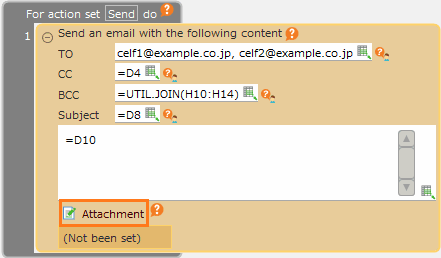
- Drag 'Send Mail' action from 'Data Operation' tab, then set in the edit area.
Note
Prior mail settings is required to use the 'Send Mail' action in CELF on-pre version. See the setup manual for more details.
Set Mail Address
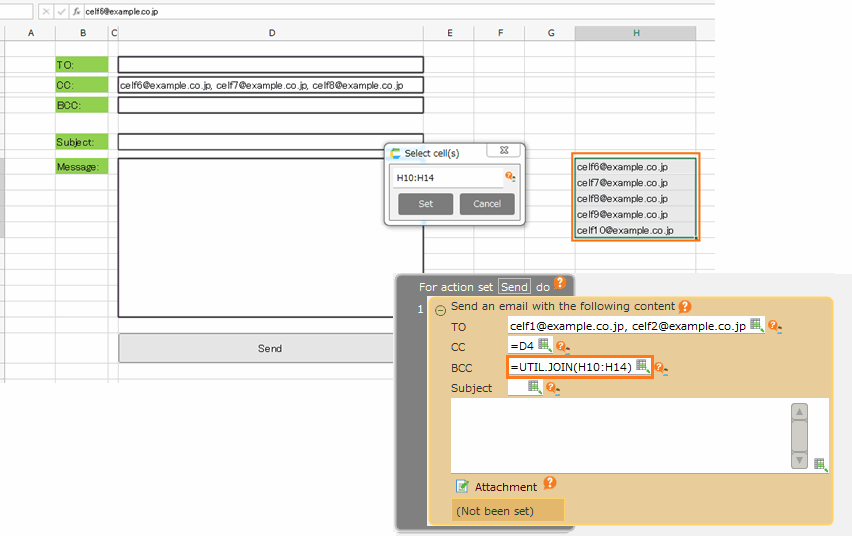
There are 3 types how to input the mail address(TO, CC, BCC).
- By manual typing
- From the cell
- By UTIL.JOIN function
From the cell

By UTIL.JOIN function
Tip
UTIL.JOIN(text_range, [separator])UTIL.JOINFunction is to create 1 word by connecting the designated characters with the comma delimiter. You can change to another delimiter by changing the second parameter.
Note
The mail address is mandatory. Also, for CELF cloud version only, there are the following restrictions.
- You can send 1 mail maximum in each transaction (1 action set).
- You can designate 50 mail addresses (including CC, BCC) in each mail.
Set Subject, Contents
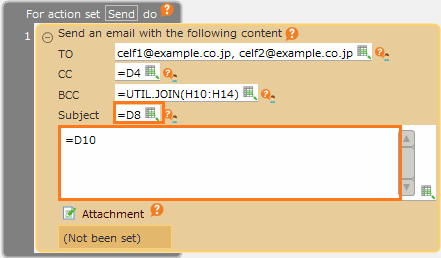
Subject or contents will be designated by the manual input or cell reference.
Set attachment file
- Click the 'Edit attached file' link button.
- In the 'Edit attached file' dialog, set the attached file.
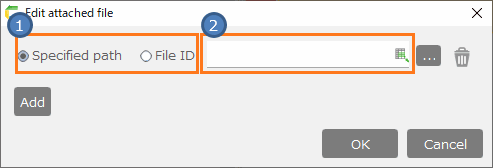
[1] File type
- If you set file with full path, select 'Specified path'.
- If you set the uploaded file for the application, select 'File ID'.
[2] Specified path/File ID
Full path or file ID will be designated by the manual input or cell reference.
Note
CELF can not attach files of the specific format described below.Please note that this list is subject to change.
For cloud version
- .ade、.adp、.app、.asp、.bas、.bat、.bin、.cer、.chm、.cmd、.com、.cpl、.crt、.csh、.der、
.exe、.fxp、.gadget、.hlp、.hta、.inf、.ins、.isp、.its、.jar 、.js、.jse、.ksh、.lib、.lnk、.mad、.maf、
.mag、.mam、.maq、.mar、.mas、.mat、.mau、.mav、.maw、.mda、.mdb、.mde、.mdt、.mdw、
.mdz、.msc、.msh、.msh1、.msh1xml、.msh2、.msh2xml、.mshxml、.msi、.msp、.mst、.ops、.pcd、
.pif、.plg、.prf、.prg、.ps1、.ps1xml、.ps2、.ps2xml、.psc1、.psc2、.reg、.scf、.scr、.sct、
.shb、.shs、.sys、.tmp、.url、.vb、.vbe、.vbs、.vps、.vsmacros、.vss、.vst、.vsw、.vxd、.ws、
.wsc、.wsf、.wsh、.xnk
For on-pre version.
- .bat、.bin、.cmd、.exe、.jar、.js、.pif、.scr、.vbs
(※There may be a limit elsewhere depending on the provider of the email service of the use.)
Also, for CELF cloud version only, there are the following restrictions.
- You can attach a total of 5 megabytes of file in each mail.
Attention
- Be careful not to mistake the address input. We recommend to display the dialog confirmation before 'Send Mail' function as following.

Important
- Be careful for mistaking the mail address to send. If the undeliverable errors repeated, the mail from any application might be blocked.
- It is banned to send the anonymous mail, commercial mail.
