Cross Tabulation (Advanced)
This page is about the way how to summarize with all kinds of data as advanced version.
- Calculate the summary.
- Summary with formula
Calculate the summary.
Display total summary
- Open 'Action set setting' dialog.
- In 'Cross-tabulate the data of the sheet', check 'Setting tabulation method' in the frame of vertical and horizontal axis.
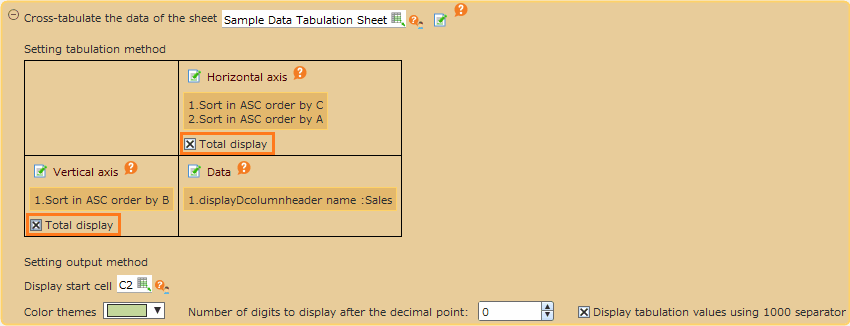
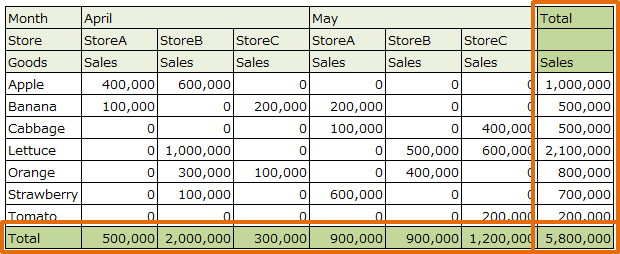
After checking 'Total display' in vertical axis, total summary row is displayed and after checking 'Total display' in horizontal axis,Total column is displayed.
- Save Action set.
Tip
Total row and Total column is displayed like the following.
Display subtotal summary.
- Open 'Action set setting' dialog.
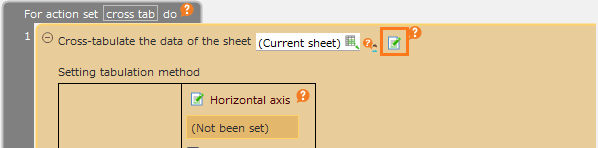
- In 'Cross-tabulate the data of the sheet', click 'Vertical axis' link button or 'Horizontal axis' link button.
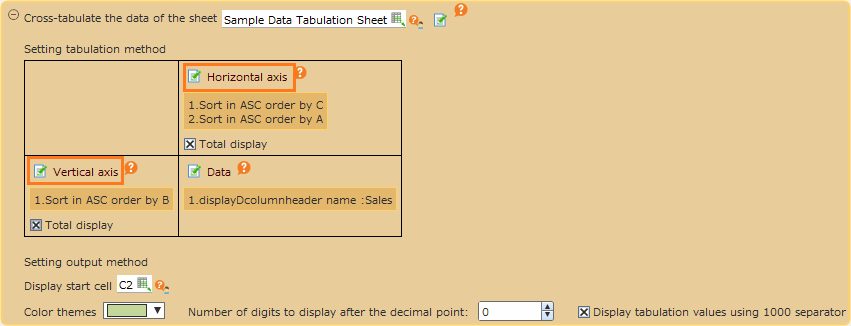
- In 'Setting tabulation items', check 'Subtotal display' next to the field to display, and then click 'OK' button
After checking 'Subtotal display' in Vertical axis, Subtotal row is displayed and after checking 'Subtotal display' in Horizontal axis, Subtotal column is displayed.
Tip
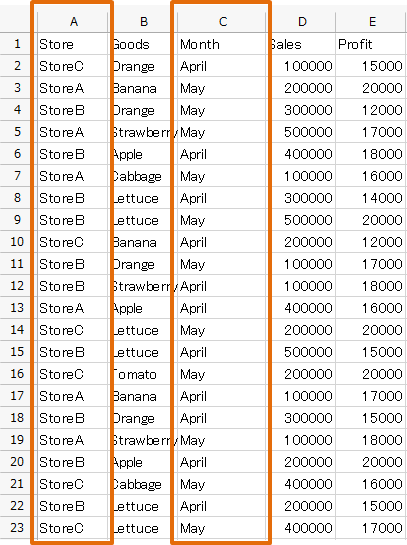
In above example, 'Month'(C column) as horizontal axis and 'Store'(A column) is chosen and then Subtotal of 'Month' is set to display.,
- Save Action set.
Tip
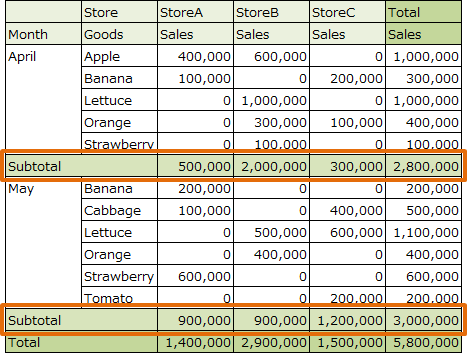
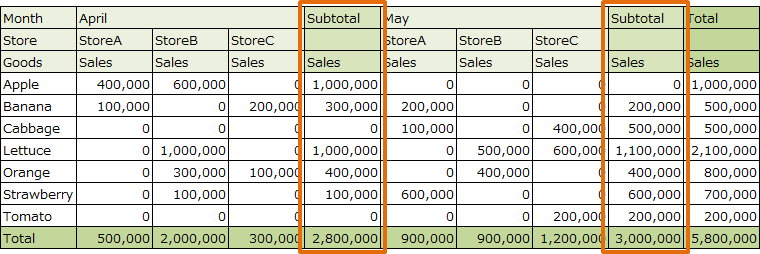
Subtotal row and column is displayed like the following.
- The case of displayed 'Month' and 'Goods' as vertical axis, 'Store' as horizontal axis, Subtotal row of 'Month'.
- The case of displayed 'Goods' as vertical axis, 'Month' and 'Shop' as horizontal axis, Subtotal row of 'Month'.
Summary with formula
- Open 'Action set setting' dialog.
- In 'Cross-tabulate the data of the sheet' action, Click 'Data' link button.
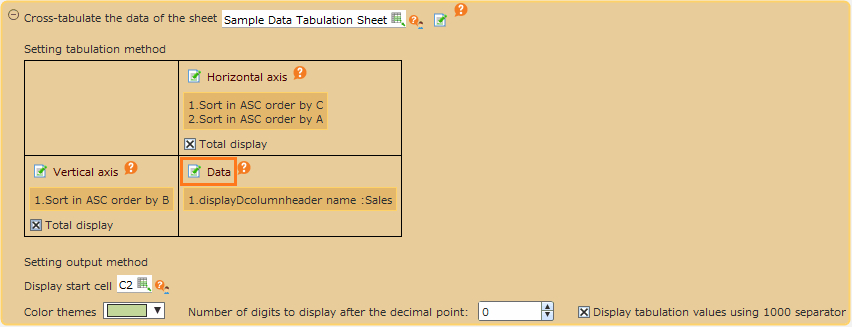
- Open 'Setting datas', choose 'Formula' at the field to use formula.
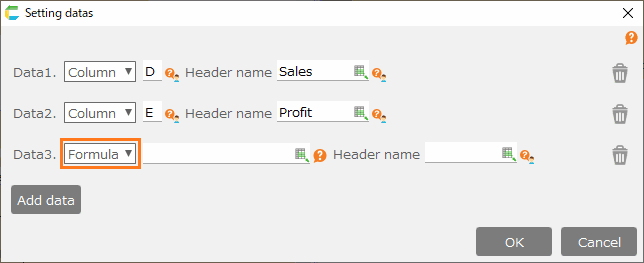
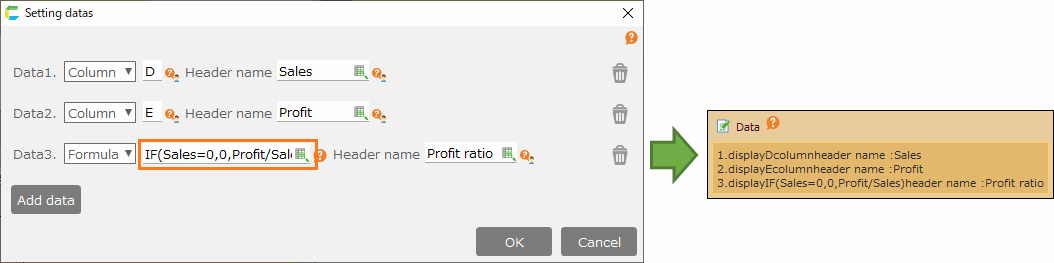
- Set the summary result by using the formula.
Note
- In formula, you can use only 'Header name', arithmetic operators and functions.
- Set formula without '=' at the initial character.
Tip
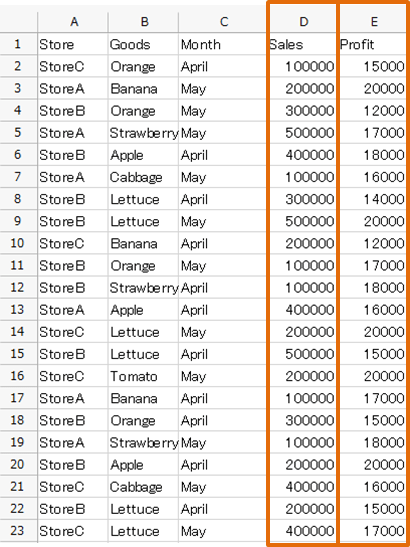
Above case is the example to set 'Sales' column(D column) and 'Profit' column(E column) as target summary and then set to display the value as Profit ratio.
- Save Action set.
Tip
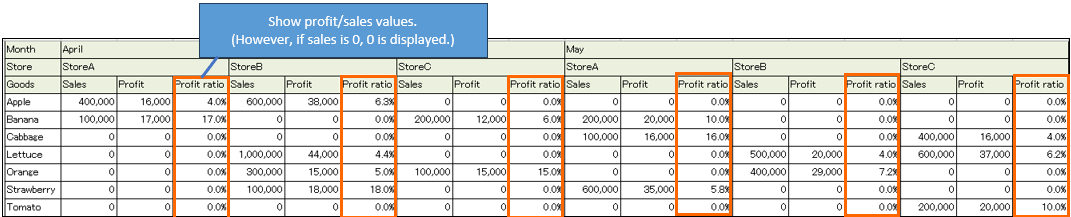
The result by the formula and function is as follows.
Related keywords
poivot table, pivottable