How to Use Single Form Application
In this section, we’ll explain how to use the application automatically created by "Create app from Excel file" function.
Show data in single form
- Launch the published app.
- When the application is launched, the menu screen will open. Click the button named [Import sheet].
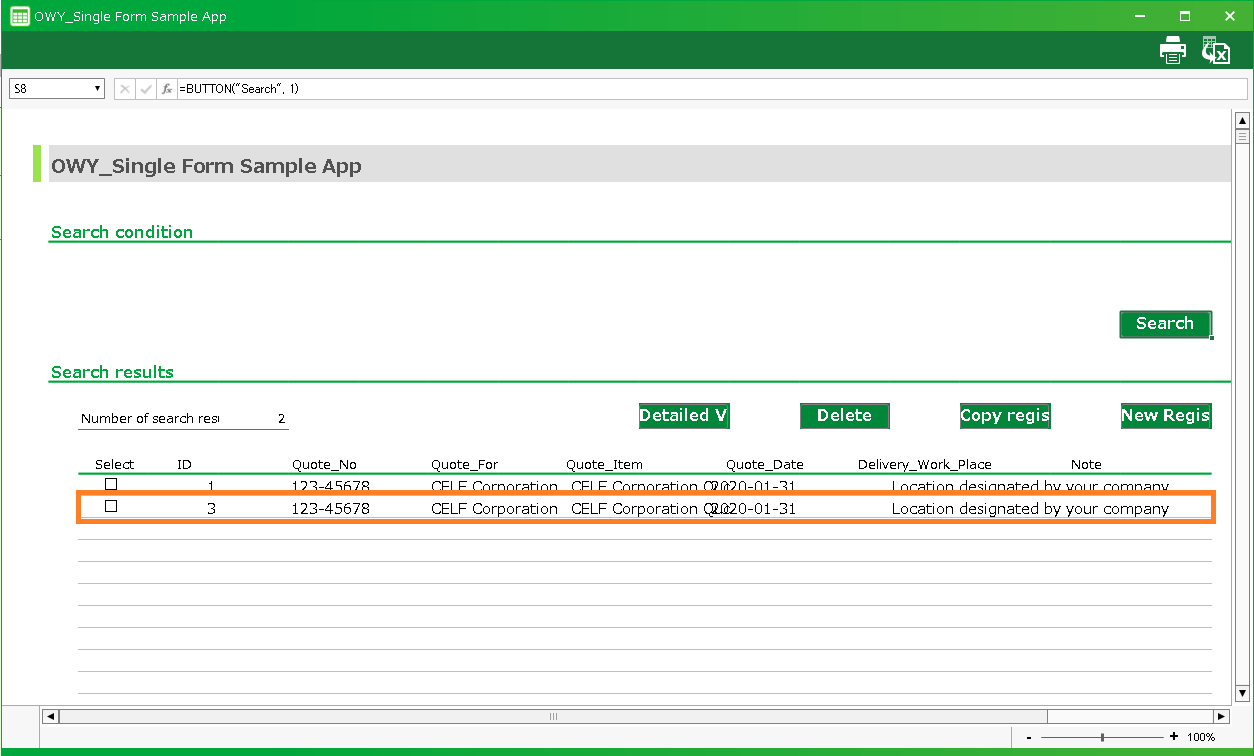
- The search screen opens. Select the data you want to see the details of from the list and click the "Detailed view" button.

- The main screen will open and the details of the selected data will be displayed on a single form.

Tip
If there is no data to choose from on the search screen, see "Register new data".
Register new single form data
- Open the search screen and click the "New Registration" button.
- The main screen is opened and displayed with no data registered.
- Enter your data and click the "Save" button.
- Return to the search screen and click the "Search" button.
- The data is displayed in the list and you can select the registered data.
Update the single form data
- Launch the published app and open the main screen.
- After editing the data, click the "Save" button.
- A pop-up will appear and the database will reflect your edits.
Delete single form data
- Open the search screen and check the data you want to delete.
- Click the "Delete" button. The list is updated and the deleted data is displayed.
Attention
Deleted data will be deleted from the database.If you want to undo it, you need to back up the data in the table beforehand.For more information on backing up table data, see Export Table Data (CSV).Tip
If you don’t know which table to back up, you can check the table switching tab in the app publishing settings.For more information on app publishing settings, please see Publish the application.
Duplicate the single form data.
- Open the search screen, select the data you want to view in detail from the list and click the "Copy Registration" button.

- The main screen will open and the details of the selected data will be displayed on a single form.
- Click the "Save" button.
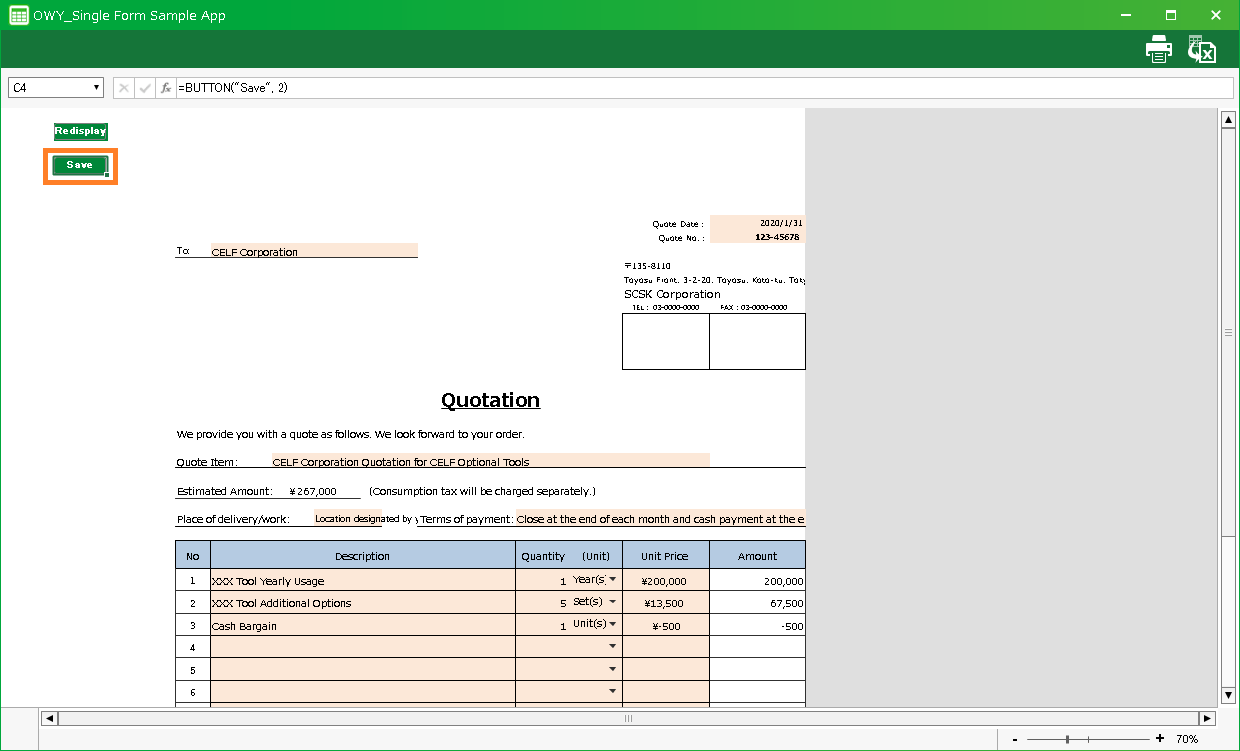
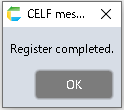
- A pop-up will appear and the database will reflect your registration.
- Return to the search screen and click the "Search" button.
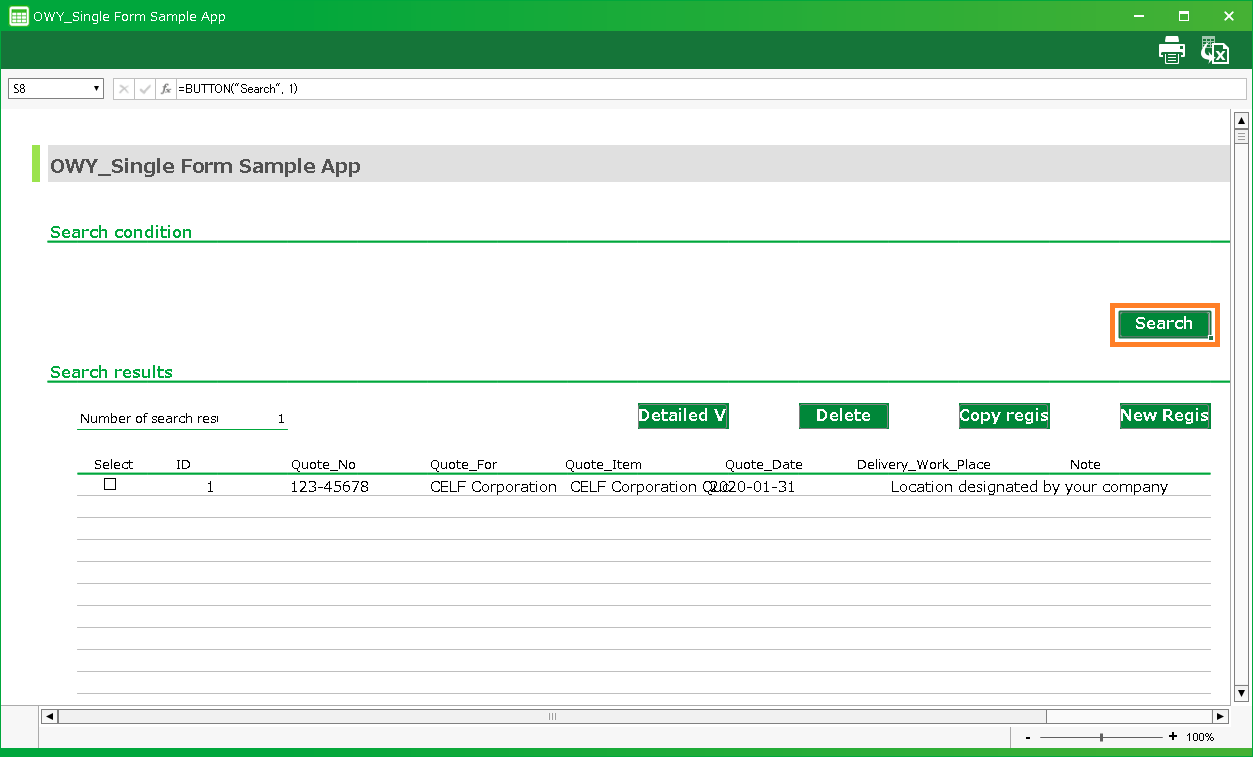
- The data is displayed in the list and you can select the registered data.