Composition of a Single Form Application
This section describes the structure of the single form application created by the "Create app from Excel" function.
Knowing the structure of the created app will help you customize the app smoothly.
Attention
This document explains the new version of the structure of the single form application.
Regarding the old version of the structure of the single form application, see [Previous Version] Composition of a Single Form Application.
About the screen structure of the application
The screen of the automatically created app will be structured as shown in the figure below.
When you start the application, the menu screen will be displayed first, and then you can move to each screen from the menu screen.
About the sheets that make up the application
The following sheets will be automatically created in the created app.
The app consists of a sheet for the screen layout and a sheet for controlling the app.

Sheet name Sheet type Roles [App name]_Menu Screen layout This is a sheet for the menu screen. You can move to each screen starting from this screen. [Imported sheet sheet]_Header Information List Screen Screen layout This is the data search screen. Select the data before moving to the main screen. [Imported sheet sheet] Screen layout This is the sheet for the main screen (imported sheet). Register, update, and delete data. [Imported sheet sheet]_Control_data Parts This sheet is used to hold the pre-input data for the main screen. [Imported sheet sheet]_Control_list Parts This is a sheet to hold the values of the list box on the main screen.
Contents of the sheet for the menu screen
Screen item
 [1] Link buttonThese are the buttons for displaying each screen.Buttons will be created for the number of sheets to be imported.
Action set
 [1] Display [Sheet]This action set opens the target sheet in a new window.
Contents of the sheet for the search screen
Screen item
 [1] Search boxThis is the area for entering search condition.[2] Search buttonThis button retrieves data from the database and displays the search results.[3] Number of search resultsThis is the number of items displayed in the list.[4] Data listThis area displays the data retrieved from the database.[5] Detail View ButtonThis button displays the main screen and shows the details of the selected data.[6] Delete buttonThis button deletes the selected data from the database.[7] Copy Registration buttonThis button duplicates the selected data and displays the main screen.[8] New Registration buttonThis button displays the main screen where no data has been entered and allows you to register new data.
Action set
 [1] List viewThis is an action set to retrieve data from the database.[2] Detailed ViewThis action set displays the details of the selected data on the main screen.[3] DeleteThis action set removes selected data from the database.[4] New registrationThis action set displays the main screen with no data input.[5] Copy registrationThis action set duplicates the selected data and display the main screen.
Contents of the sheet for the main screen
Screen item
 [1] Redisplay buttonThis button is used to retrieve data from the database and update the screen.[2] Save buttonThis button is used to save the edited content.The edited content will be reflected in the database.[3] Data input areaThis is the data entry cell that you set up when creating the application.This is the area where data is displayed and data is entered.
Action set
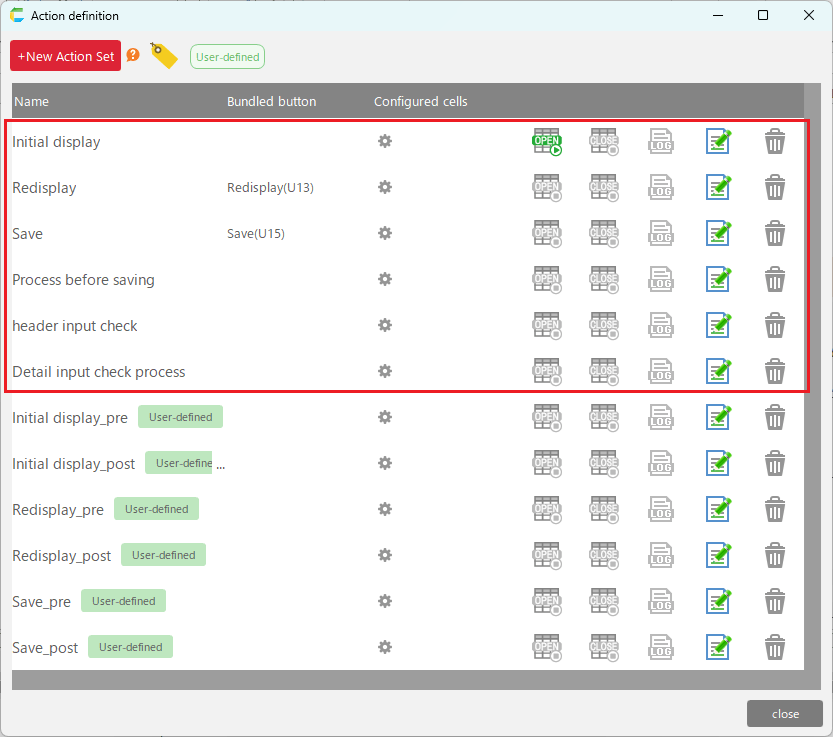
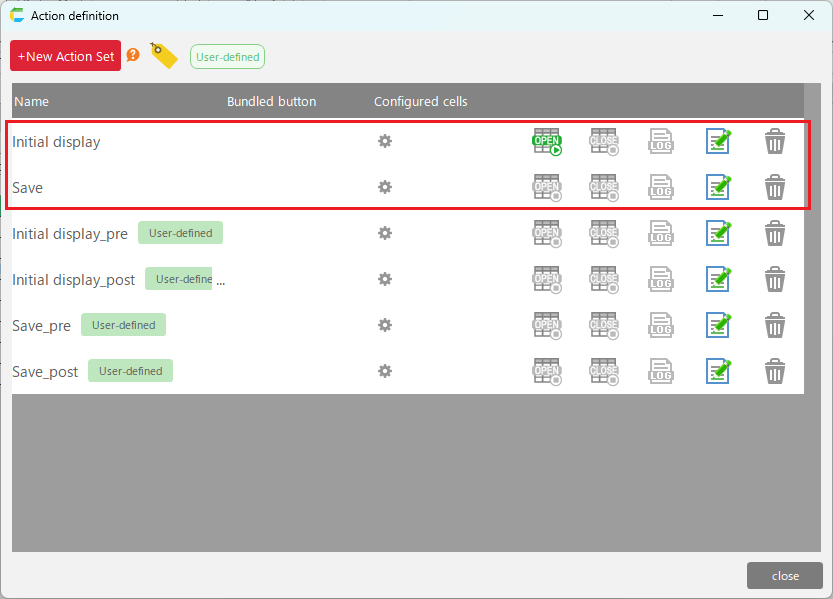 [1] Initial displayThis action set displays data when the screen is opened.[2] RedisplayThis action set retrieves data from the database and updates the screen.[3] SaveThis action set reflects the result of editing in the database.[4] Process before savingThis action set compares the data before and after editing, and determines whether to add, update, or delete for each row.This action set will be called from the "Save" action set.[5] Header input checkThis action set checks the input of the header input area.This action set will be called from the "Save" action set.[6] Detail input check processThis action set checks input in the detail input area (table section).This action set will be called from the "Save" action set.[7] [Action set name]_pre/postThis action set allows users to define their unique actions, which will be called before or after the action set created with the "Create app from Excel" function.The main screen sheet of the single form application defines the following action sets.
Action set name Details Initial display_pre This action set is called before the "Initial display" action set is executed. Initial display_post This action set is called after the "Initial display" action set is executed. Redisplay_pre This action set is called before the "Redisplay" action set is executed. Redisplay_post This action set is called after the "Redisplay" action set is executed. Save_pre This action set is called before the "Save" action set is executed. Save_post This action set is called after the "Save" action set is executed. Tip
If editing of an application generated from an Excel file is executed, action sets are also automatically recreated, but the "[Action set name]-pre/post" action set is not recreated.If you want to add your unique action to the Action Set of the main screen sheet, describe it in the "[Action set name]-pre/post" Action Set.Regarding the editing of the application generated from the Excel file,see Update items on the sheet after editing the app.
Variable area and Name manager of the main screen sheet
A variable area is automatically created in the hidden area of the created sheet for the main screen.
Also, variables for accessing variable areas and constants for table areas are automatically set in the name manager.
Variable area
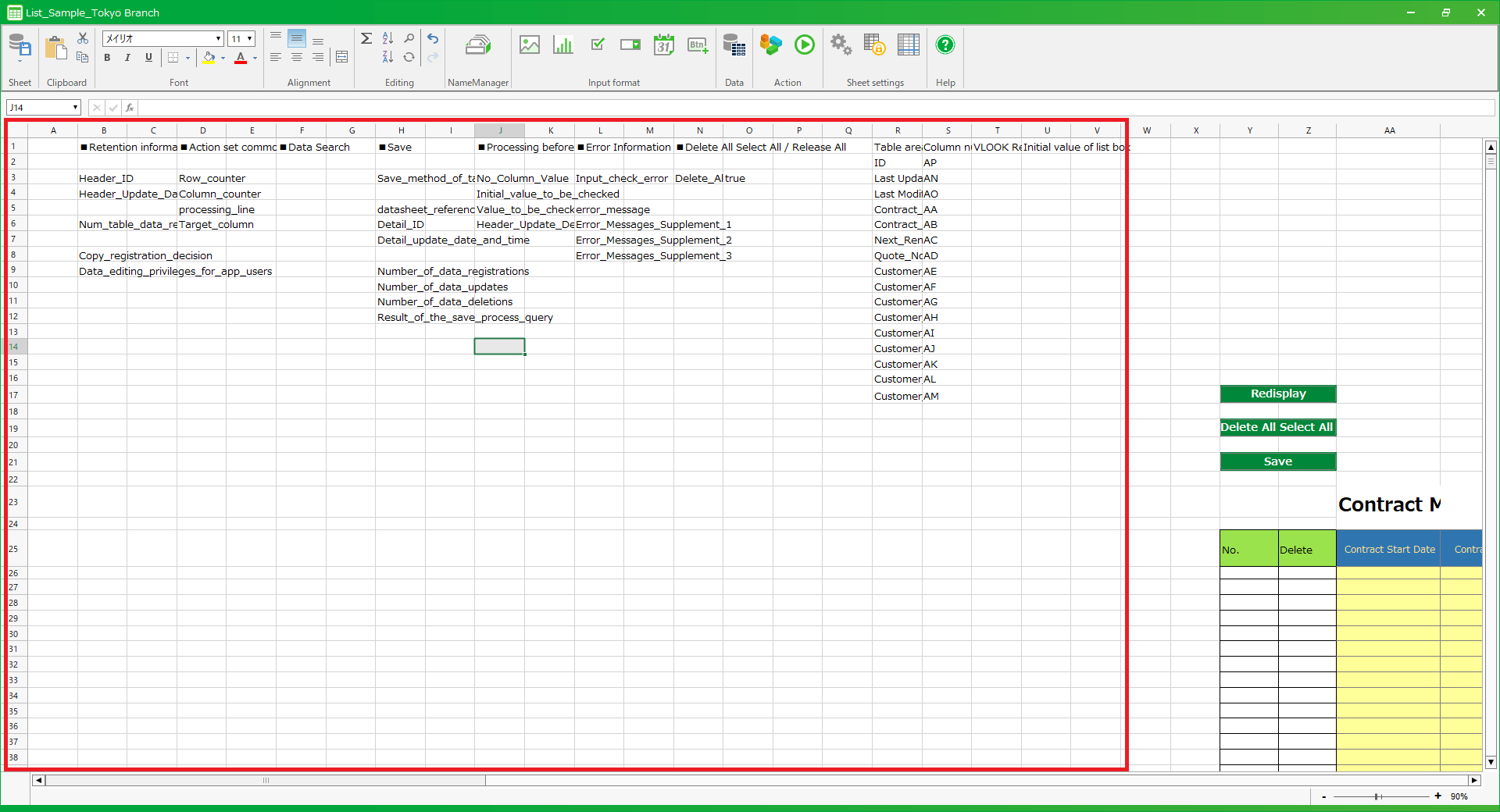
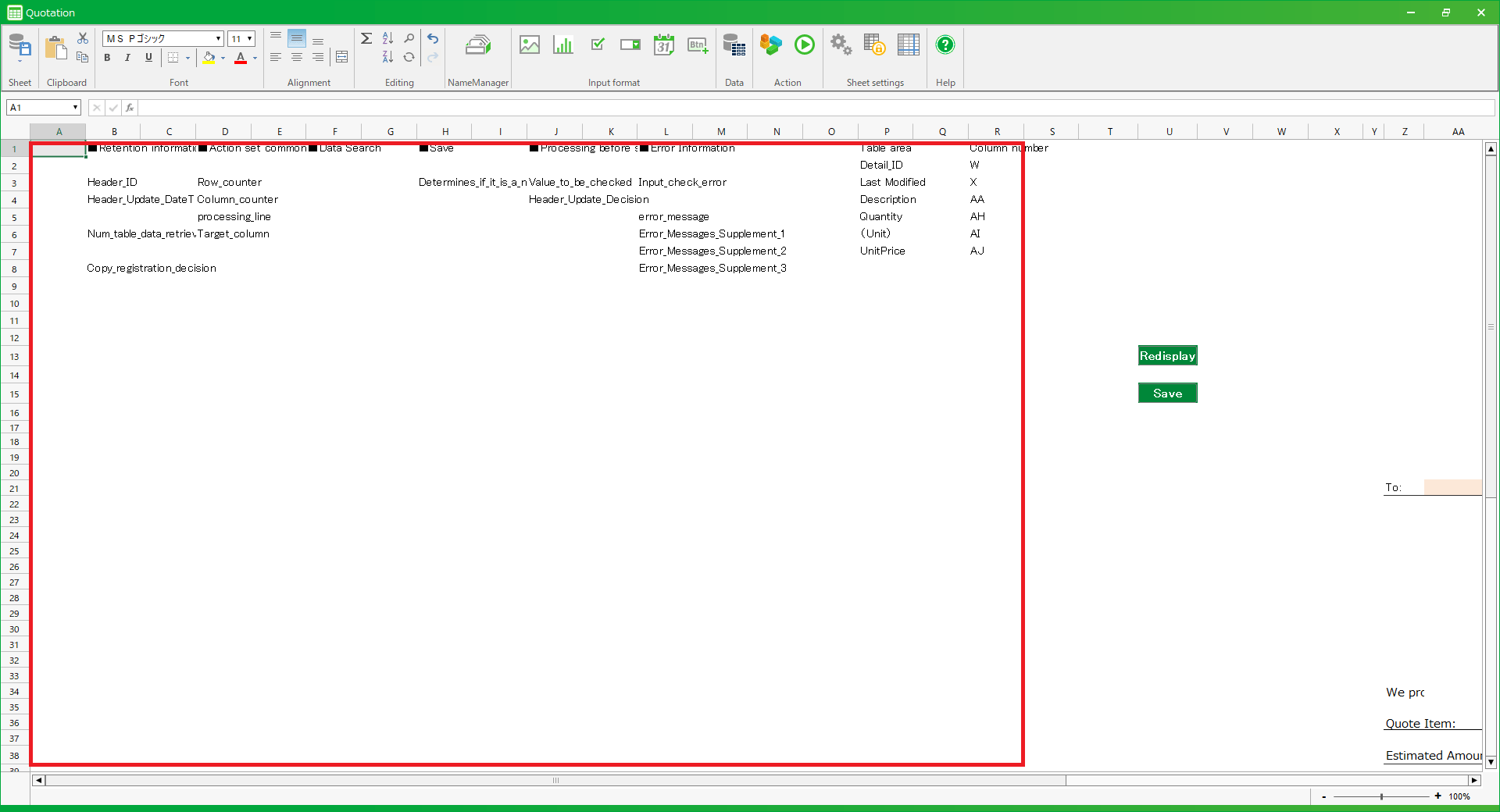
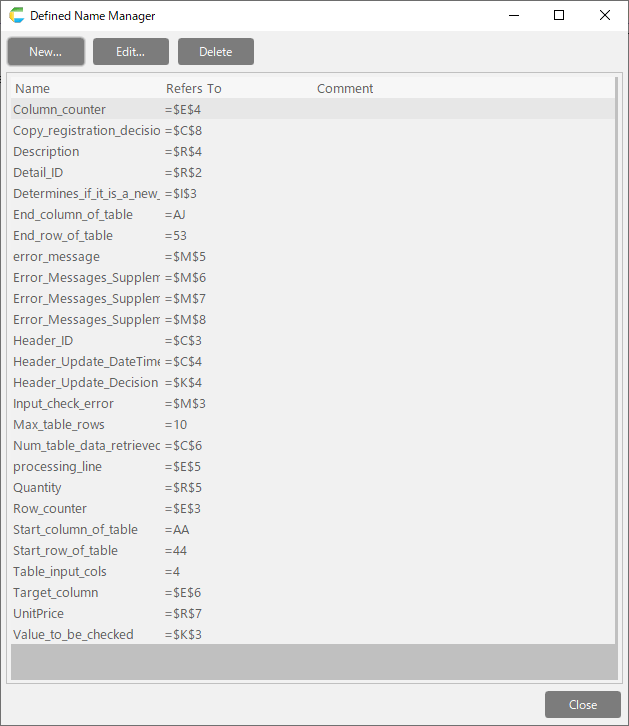
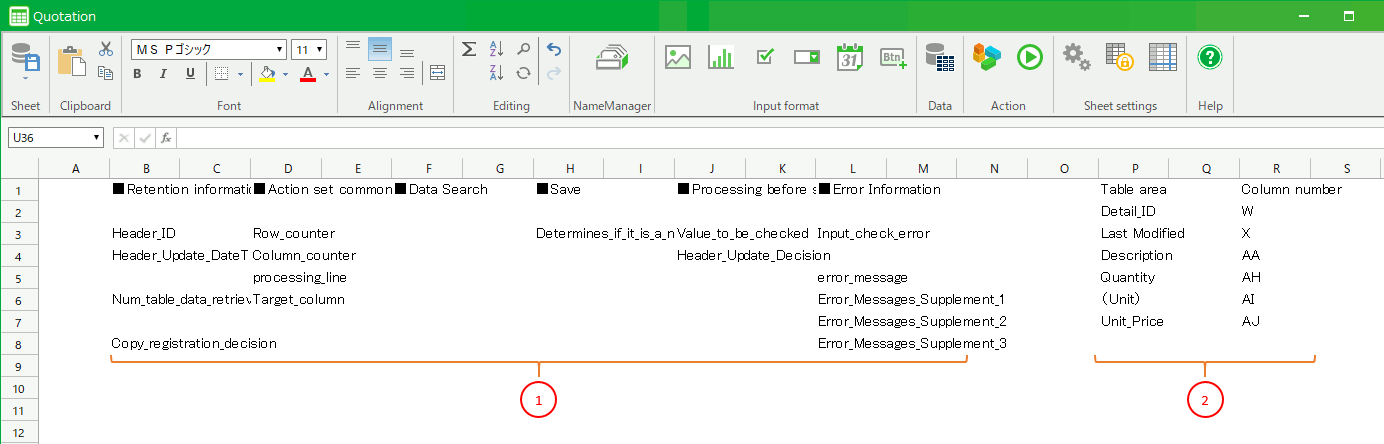 [1] Variable area for action control (Columns A to M)This is the area used for the calculation result of the action (such as the current loop count) and the base value for the calculation.This area is set by the action, so it is not edited by the developer.[2] Table area (Columns P to R)This is the area for controlling the input columns of the table.Specify which column contents will be reflected in each item of the destination table.
Name manager
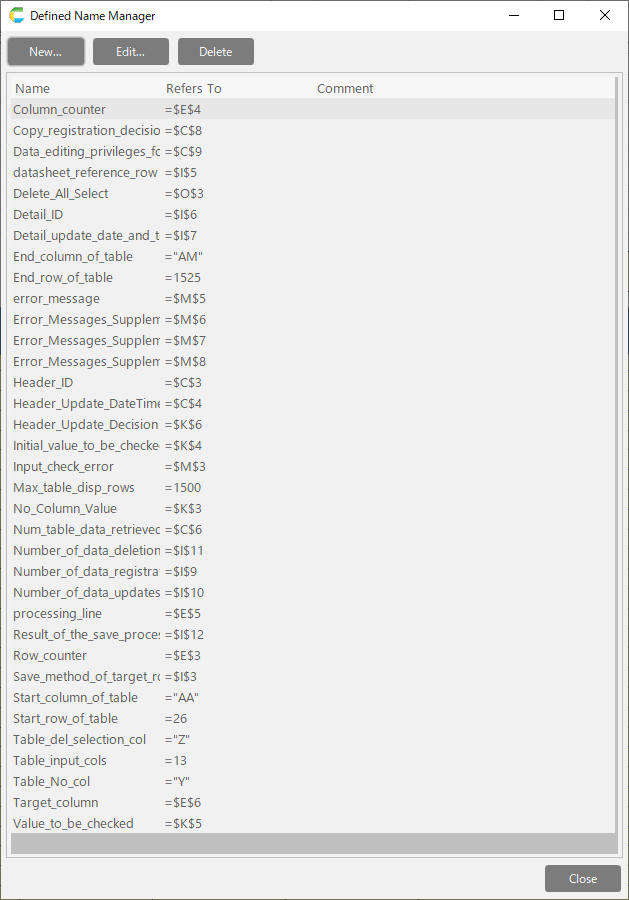
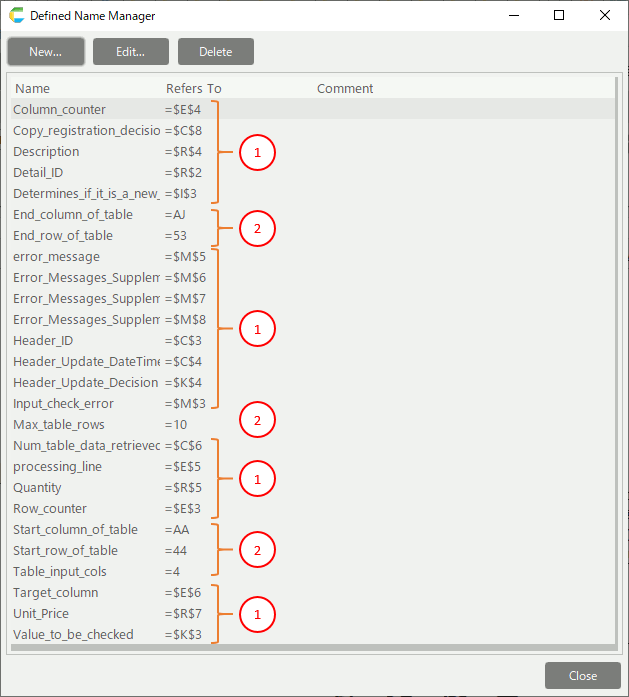 [1] Variables for action controlThe cell address of the variable for action control created in the variable area is defined.[2] Constants for table areaConstants related to the table area are defined, such as the start row and end row of the table and the max table display rows.
Control sheet (data)
Screen item
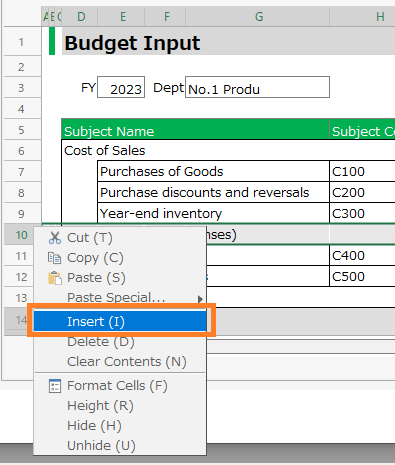 [1] Data area before editingThis is the area where the data before editing is set.The data will be set when the application is launched and the main screen is opened.When data is saved, it is compared with the data in this area to determine which cells have been changed.
Action set
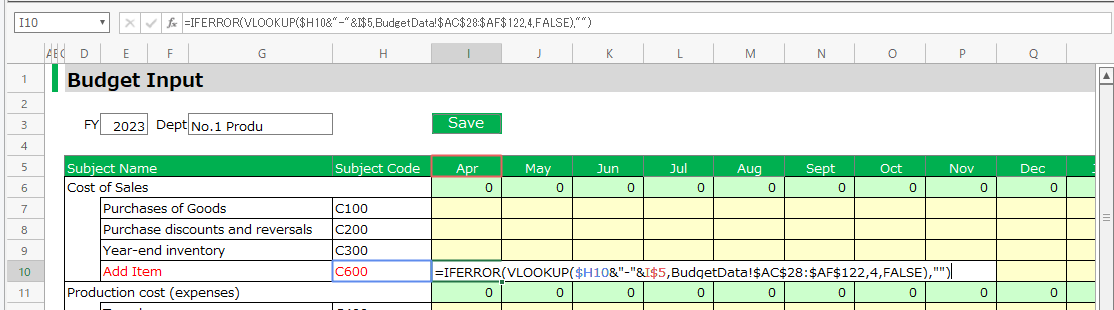 [1] Header searchThis action set retrieves data from the header input area.This action set will be executed from the main screen.[2] Initialize sheetThis is an action set to initialize the data in this area.This action set will be executed from the main screen.
Control sheet (list)
Screen item
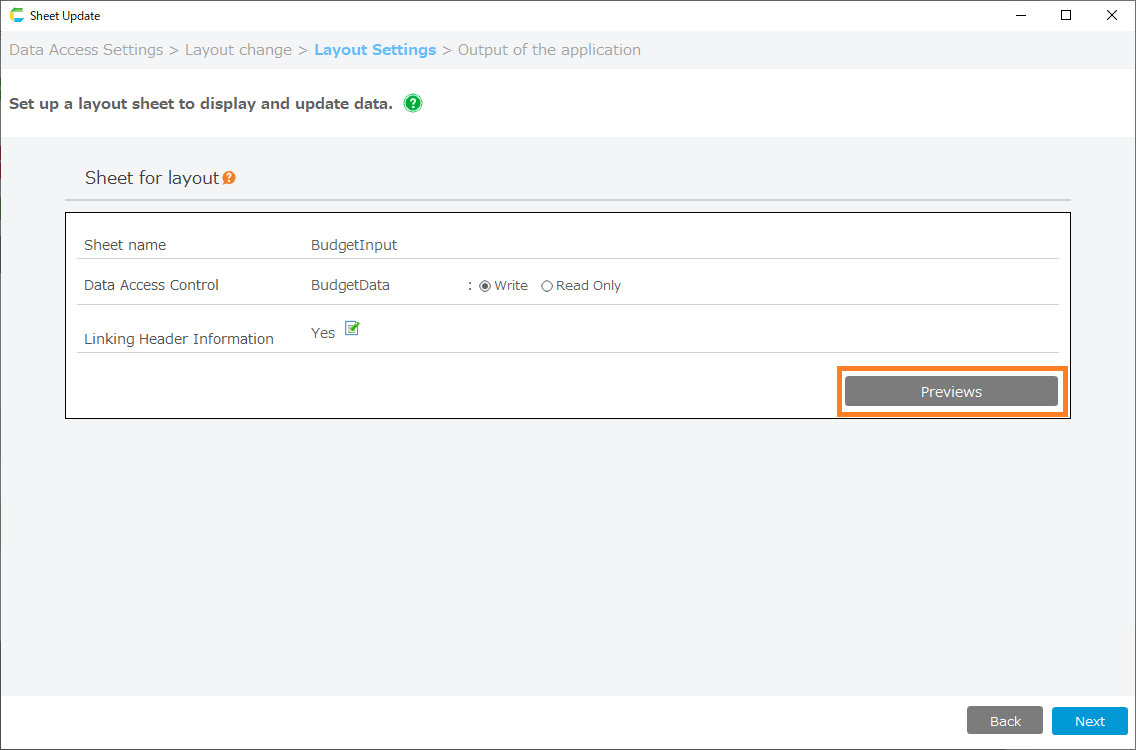 [1] Start line numberThis area controls the display start line of the master data.Used when there are tables that have been split by table customization.[2] End of line numberThis area controls the display end line of the master data.Used when there are tables that have been split by table customization.[3] Maximum number of acquisitionsThis area controls the maximum number of master data to be acquired.Used when there are tables that have been split by table customization.[4] Master data display areaThis is the area where the master data is displayed.Set if the table is split by table customization.If not split, this area does not exist.[5] List type areaThis is a list type data area.The value will be set if the input items are set to a list format when the application is created.If the list format is not set, this area does not exist.
Action set
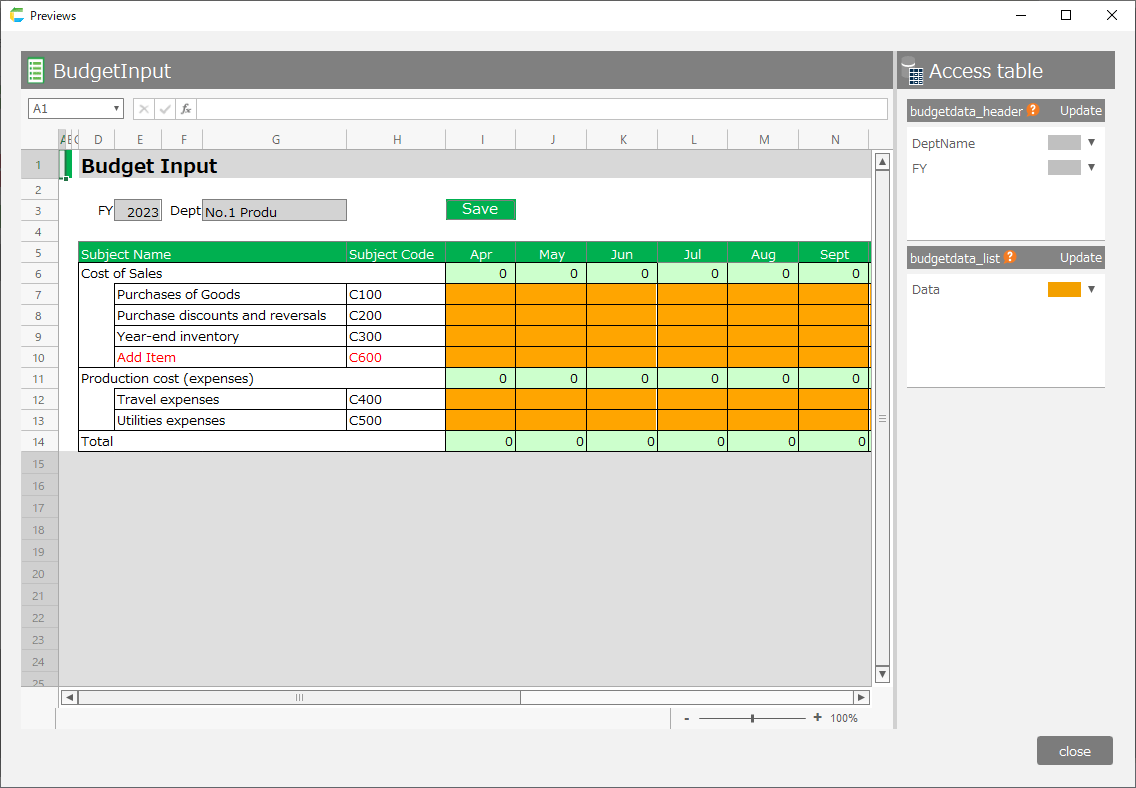 [1] Get master dataThis is an action set used to retrieve the master data.Used when there are tables that have been split by table customization.