Structure of the Multiple sheet combination App
This section describes the structure of the multiple sheet combination application created by the "Create App from Excel" function.
Knowing the structure of the created app will help you customize the app smoothly.
Attention
バージョン 3.6.1 以前で作成したアプリの構成については、[Old version] Structure of the Multiple sheet combination App を参照してください。
About the screen structure of the application
The screen of the automatically created app will be structured as shown in the figure below.
When you start the application, the menu screen will be displayed first, and then you can move to each screen from the menu screen.
For shared type

For aggregation type

About the sheets that make up the application
The following sheets will be automatically created in the created app.
The app consists of a sheet for the screen layout and a sheet for controlling the app.
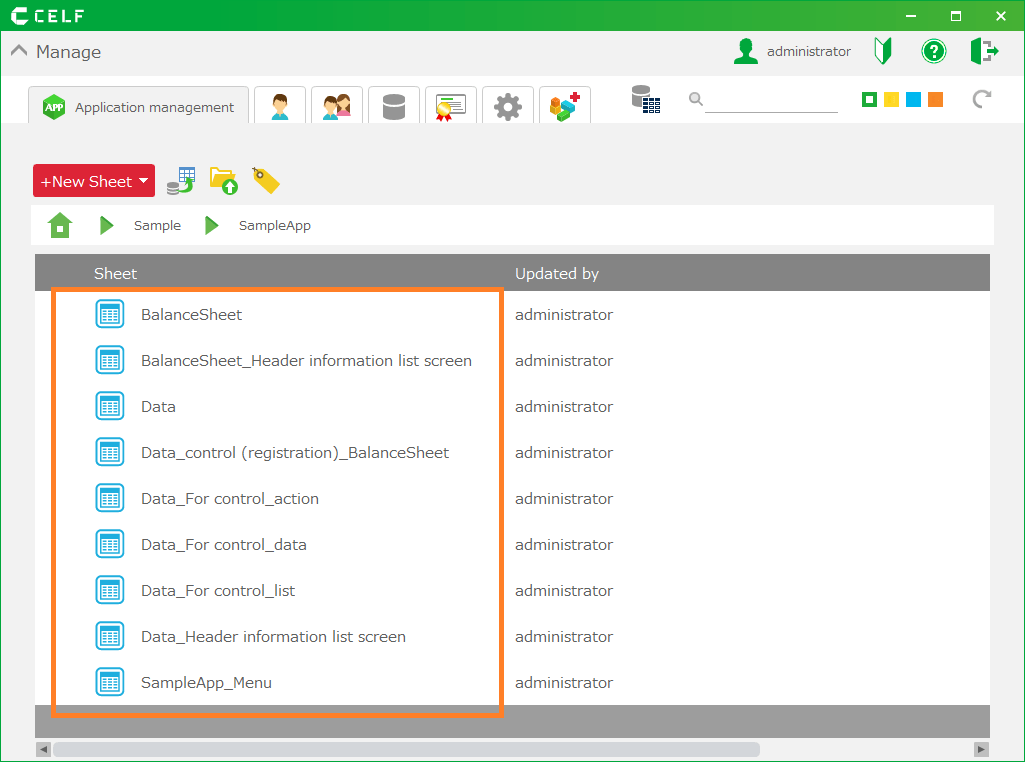
Sheet name Sheet type Role [App name]_Menu Screen layout This is a sheet for the menu screen. You can move to each screen starting from this screen. [Import sheet]_Header Information List Screen Screen layout This is the data search screen. Select the data before moving to the main screen. [Import sheet] Screen layout This is the sheet for the main screen (import sheet). Register and update data. [Reference sheet] Parts/Layout This sheet is referred to from the import sheet. This sheet is used to retrieve data from the database. [Reference sheet]_Header Information List Screen Screen layout This is the data search screen. Select the data before moving to the reference sheet. [Reference sheet]_Control (registration)_[Import sheet] Parts This sheet refers to the import sheet. This sheet references the input cells on the intake sheet, and updates and registers the database table with the referenced values. [Reference sheet]_Control (data) Parts This sheet is used to hold the data before updating the reference sheet. This sheet is used to compare whether data has been updated or not when data saving is executed. [Reference sheet]_Control (list) Parts This sheet is used to hold the values of the list box in the reference sheet. Tip
The Header information list screen will be created when the header area is selected when creating the application.
Contents of the sheet for the menu screen
Screen items
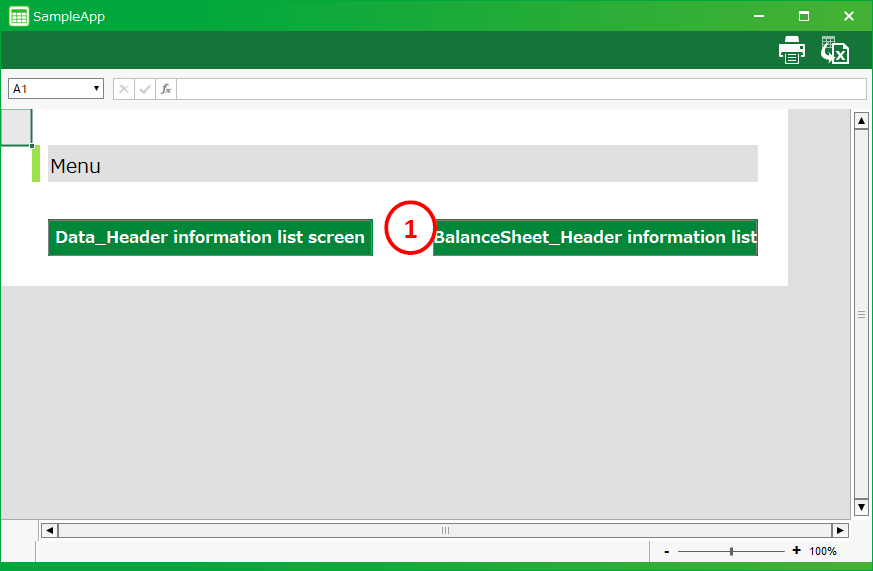 [1] LinkThese are the buttons to display each screen.The buttons are created to move to the main screen and the reference sheet.
Action set
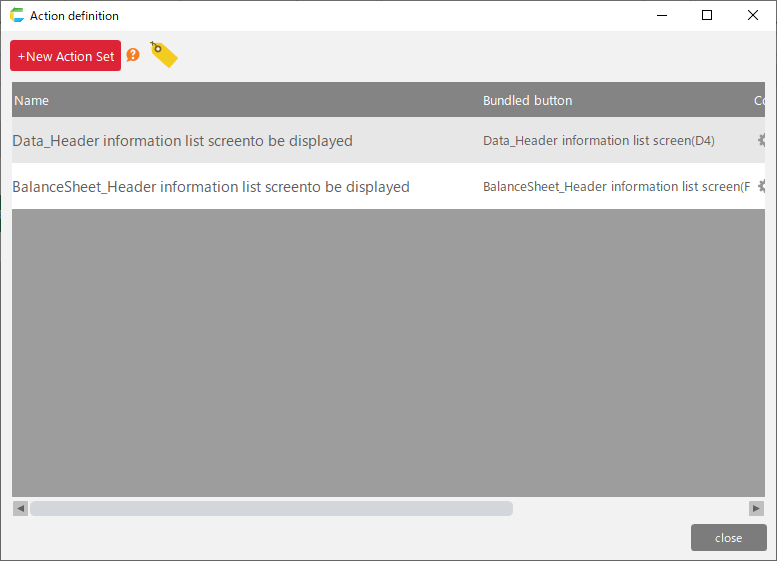 [1] Display [Sheet]This action set is used to open the target sheet in a new window
Contents of the sheet for the search screen
Screen items
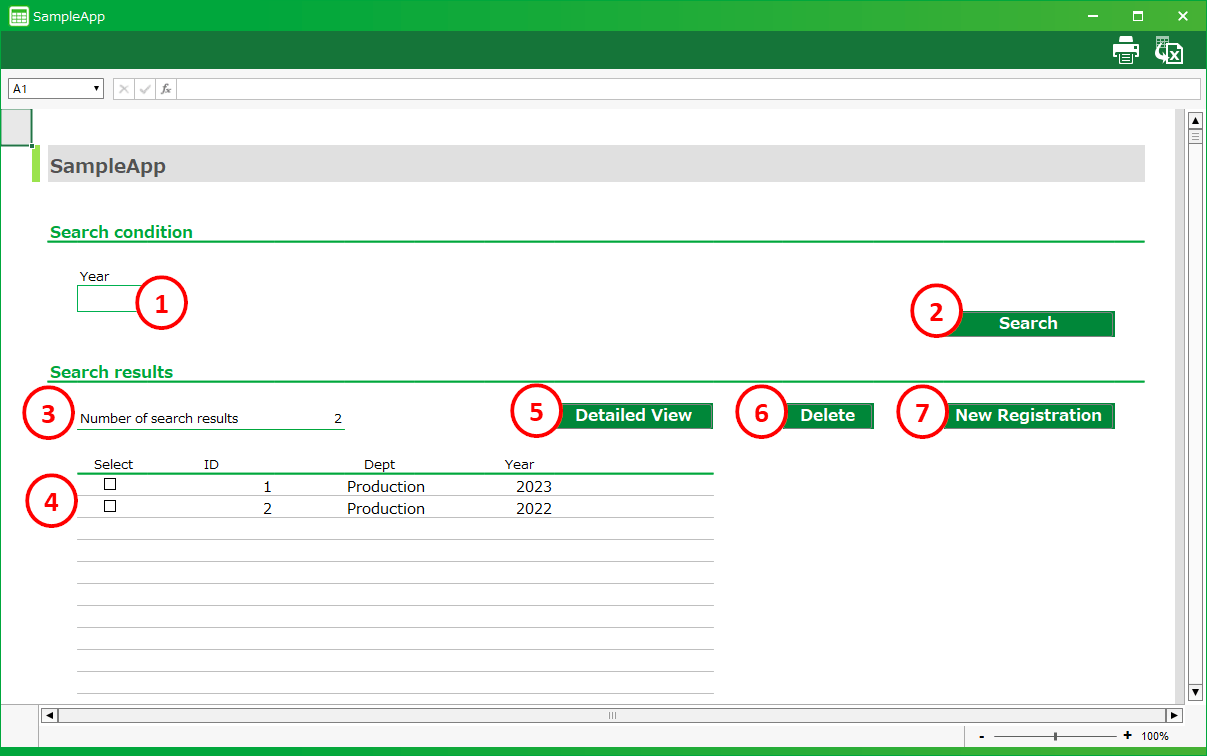 [1] Search boxThis is the area for entering search condition.[2] Search buttonThis button retrieves data from the database and displays the search results.Search result numbetrThis is the number of items displayed in the list.[4] Data listThis area displays the data retrieved from the database.[5] Detail View ButtonThis button displays the main screen and shows the details of the selected data.[6] Delete buttonThis button deletes the selected data from the database.[7] New Registration buttonThis button displays the main screen where no data has been entered and allows you to register new data.
Action set
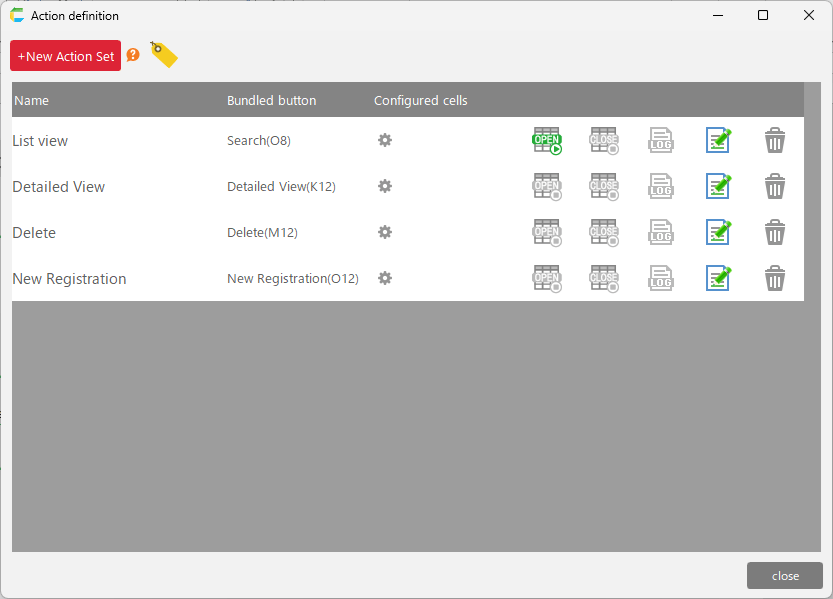 [1]List viewThis action set retrieves data from the database.[2] Detail viewThis action set displays the details of the selected data on the main screen.[3] DeleteThis action set removes selected data from the database.[4] New registrationThis action set displays the main screen with no data input.
Contents of the sheet for the main screen
Screen items
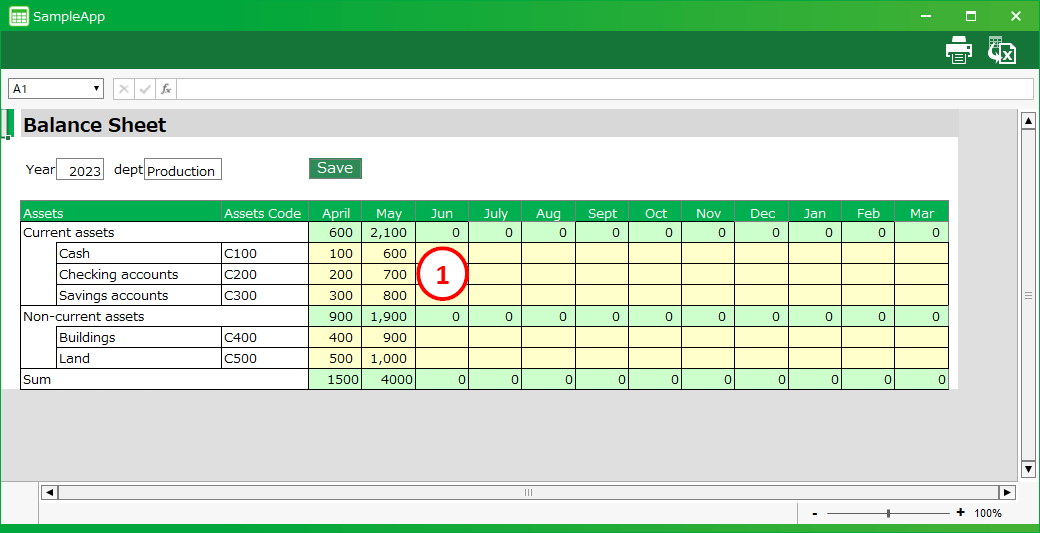 [1] Data input areaThis is the data entry cell that you set up when creating the applicationThis is the area for displaying and entering data.
Action set
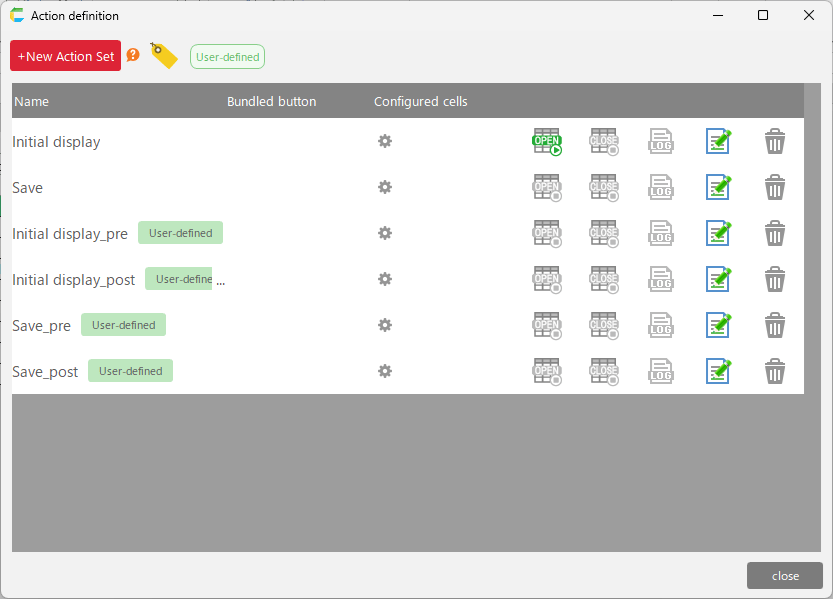 [1] Initial displayThis action set displays data when the screen is opened.[2] SaveThis action set reflects the result of editing in the database.[3] [Action set name]_pre/postThis action set allows users to define their unique actions, which will be called before or after the action set created with the "Create app from Excel" function.The following action sets are defined in the sheet for the main screen
Action set name Description Initial display_pre This action set is called before the "Initial display" action set is executed. Initial display_post 「初期表示」のアクションセットが実行された後に呼び出されるアクションセットです。 Save_pre This action set is called before the "Save" action set is executed. Save_post 「保存」のアクションセットが実行された後に呼び出されるアクションセットです。 Tip
If editing of an application generated from an Excel file is executed, action sets are also automatically recreated, but the "[Action set name]-pre/post" action set is not recreated.If you want to add your unique action to the Action Set of the main screen sheet, describe it in the "[Action set name]-pre/post" Action Set.Regarding the editing of the application generated from the Excel file,see Update items on the sheet after editing the app .
Control sheet (Registration)
Screen items
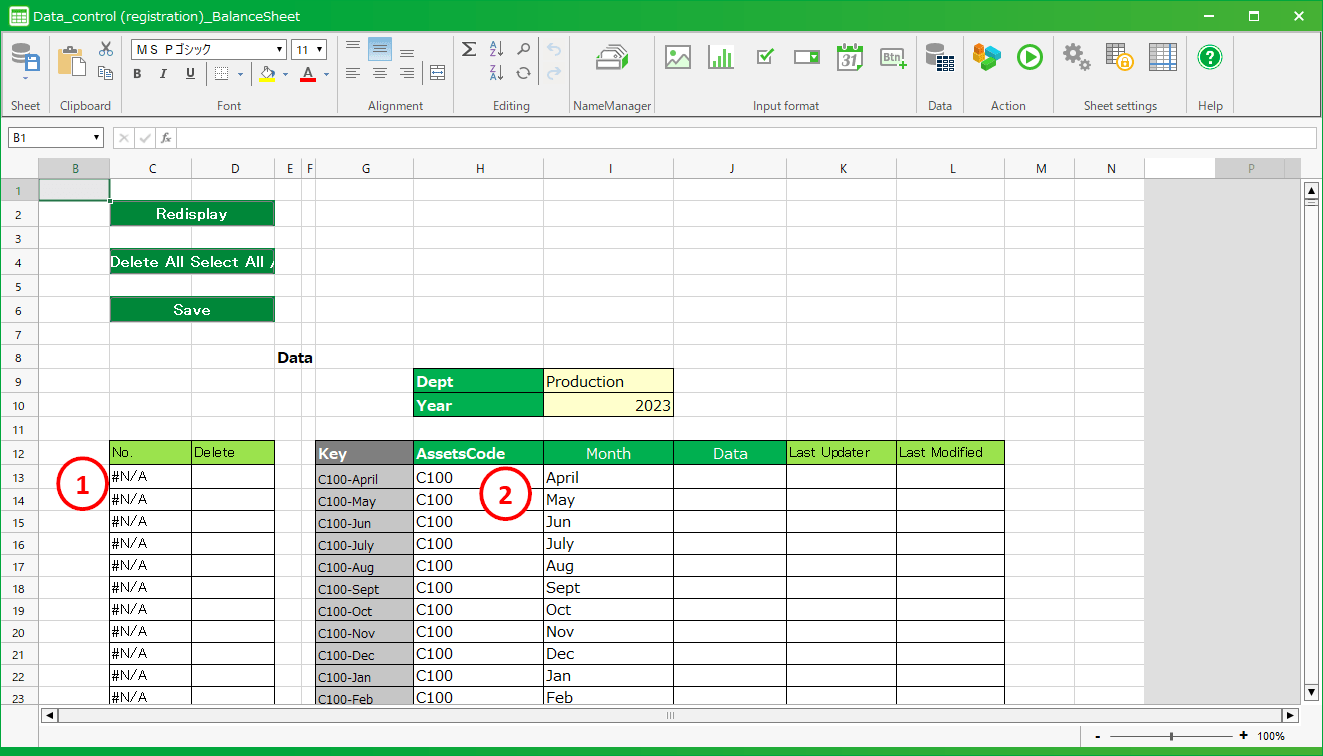 [1] Record ID retrieval areaThis is the cell area that references the record ID displayed on the reference sheet.The record ID of the table data is displayed in this area when the main screen is displayed.[2] Data retrieval area of the main screenThis cell area refers to the data area of the main screen.Data in this area is registered and updated in the table when saving is executed from the main screen.
Action set
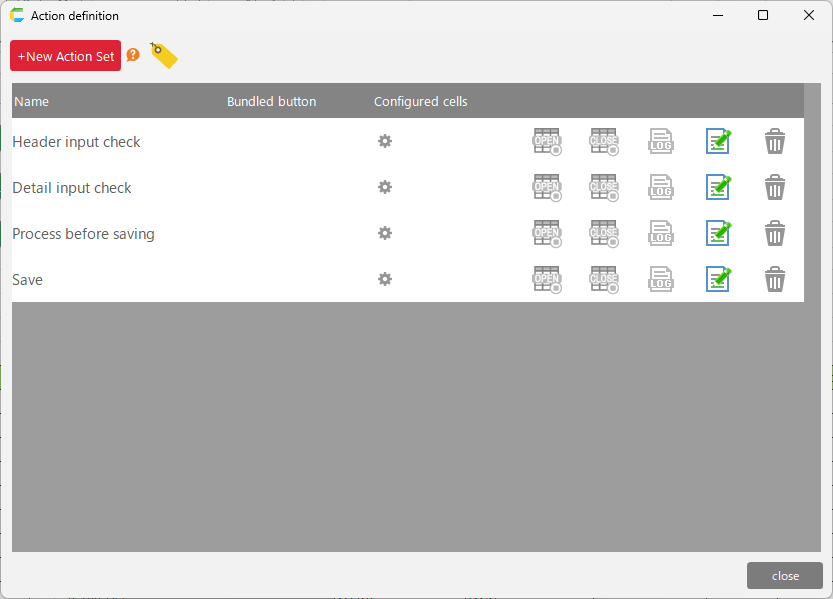 [1] SaveThis action set reflects the result of editing in the database.[2] Process before savingThis action set compares the data before and after editing, and determines whether to add, update, or delete for each row.This action set will be called from the "Save" action set.[3] Header input checkThis action set checks the input of the header input area.This action set will be called from the "Save" action set.[4] Detailed statement input checkThis action set checks the input of the statement input area (table section).This action set will be called from the "Save" action set.
Contents of reference sheet
The content of the sheet is the same as the main sheet of the list app.See Contents of the sheet for the main screen for sheet contents.
Control sheet (data)
The content of the sheet is the same as the control sheet (data) for the list app.See Control sheet (data) for sheet contents.
Control sheet (list)
The content of the sheet is the same as the control sheet (list) for the list app.See Control sheet (list) for sheet contents.