Set up the circulation process
- Status… the state of the circulation data
- Operation… the action taken by the person in charge on the circulated data
- Process… the combination of status transition and operation
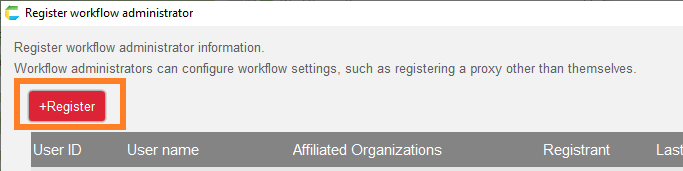
Various settings can be performed in the 'Set Process' dialog, which opens by clicking on the 'Set Process' button.
Register a status
- In the 'Set Process' dialog, click the 'Register status' button.
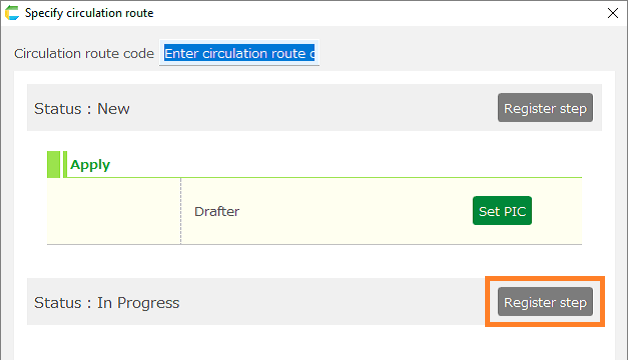
- In the 'Register status' dialog that opens, make the necessary registrations/edits.
① Register button … to add a new row at the end.
② Arrow button … to move the status up or down. The order will be reflected in the initial order when the process is registered.
③ Status name … to enter the status name.
④ Delete button … to delete the status.
- Click the 'OK' button.
Note
The top status is the first status in the workflow and cannot be moved or deleted.
Register a circulation process.
- In the 'Set Process' dialog, click the 'Register operation' button.
- In the 'Register operation' dialog that opens, make the necessary registrations/edits.
① Register button … to add a new row at the end.
② Operation name … to enter the operation name.
③ Delete button … to delete the operation.
- Click the 'OK' button.
Register a process
- Processes are registered/edited in "2. Set Process" in the 'Set Process' dialog box.
① Register button … to add a new row at the end.
- ② Specifying main process … Check the box next to the main process specification.
- You must specify a status that will be the final one (the status without a next status).
Tip
If there are multiple steps within the same status, the behavior will depend on whether it is the main process or not.
- If it is the main process… only one step at a time is circulated by a person in charge in the circulation process. (Example: approve)
- If it is not the main process… regardless of the number of subsequent steps, the first step of the next status will be circulated by the person in charge in the circulation process. (Example: revert)
③、④、⑤ Status, operation name… the statuses and operations that make up the process.
- ⑥ Alias status button … set an alias to be used only when transitioning to the next status in the specified process.
Alias names are used, for example, the name of the circulation status to be retrieved by the 'Acquire circulation data list' action.
For example, the following is set in the third row of the above image.
This will cause the alias 'Reverted' to be used only when the 'New' status is achieved in the 'revert' operation.
⑦ Delete button … Delete the process.
Attention
Process cannot be branched, but can be retracted (e.g. "retract").
- In the 'Set Process' dialog, click OK.