Registration and Initial Setup of Extension Options
This section explains the necessary steps to use workflow functions.
Attention
- CELF administrator privileges are required for the following operations
Registration of extension options
First, register the workflow extension option with CELF.
- Get the workflow extension option package from your CELF distributor, or download it from here(Japanese).
- Register the downloaded extension option with CELF according to Add new extension instructions.
Note
- This extension option is 'Workflow extension option' with ID: JP.SCSK.CELF.WORKFLOW2.
- Note that this is different from the "Workflow extension option" with ID: JP.SCSK.CELF.WORKFLOW.
Initial Setup
After registering the extension option, perform the following steps before using workflow for the first time.
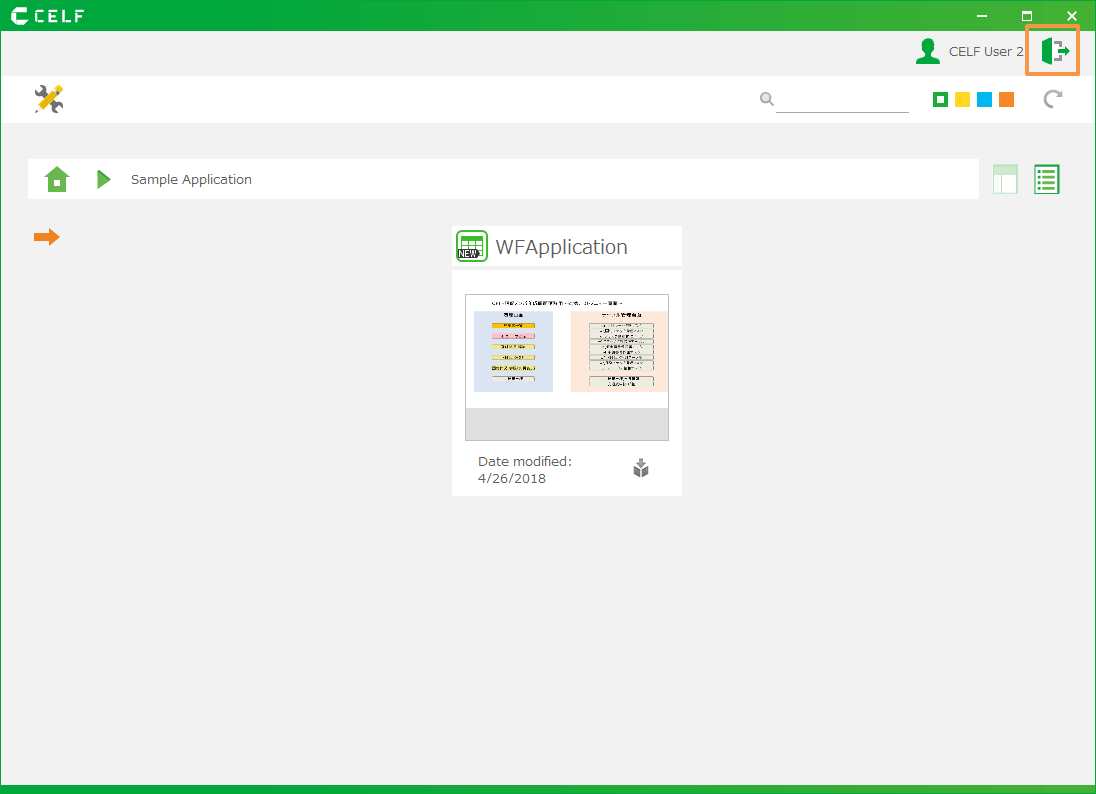
1.Show the workflow settings screen. To show the settings screen, open the 'Workflow' tab in the Action Set Editor and click the icon in the upper right corner within the tab.
Hint
The Action Set Editor can be launched from any sheet.
- Click the 'Create/Update table' button under 'Initial Setup'.
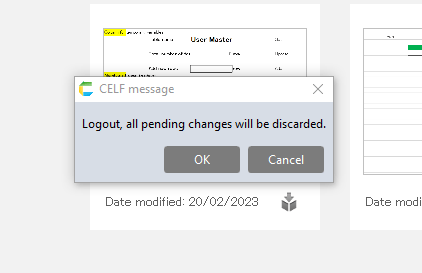
- Follow the on-screen instructions to create the necessary tables for using workflow automatically.
Tip
- The tables created here will start with the name wf2_ .
Notes on organization/position information.
To use organization/position information within the workflow, a separate "Organization Master App" is required. For more details, please refer to Setup of Organization Master App .