Register circulation targets
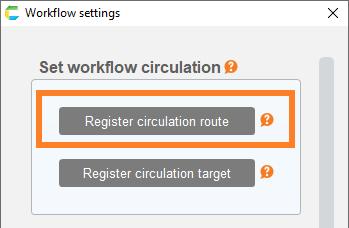
This can be done in the 'Register circulation target' dialog box that opens when you click on the 'Register circulation target' button.
Register a new circulation target
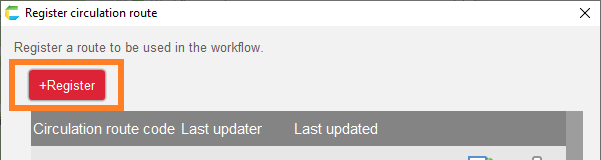
- Click the "Register" button in the 'Register circulation target' dialog.
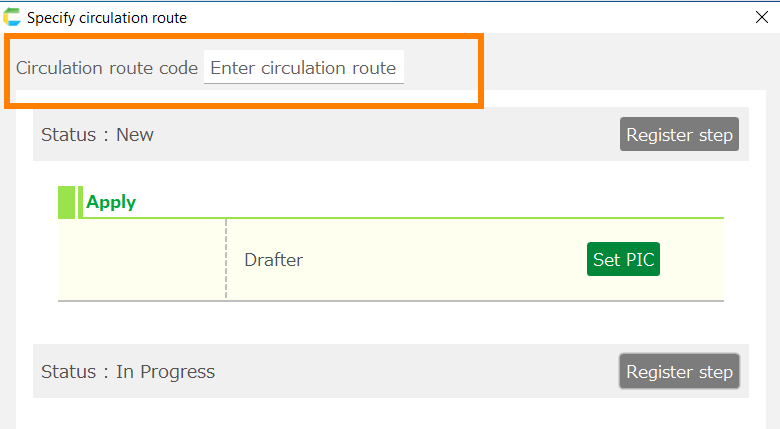
- Enter the 'Circulation data name'. Enter a name that is easy to recognize the data to be circulated. (e.g., 'Personnel Transfer Request Form')
- Click on the edit button next to the table item to specify the table that contains the data to be circulated.
Note
The specified table must correspond to one circulation data (e.g., one application) per row of data.
- Click on the edit button next to the sheet item to select the sheet that displays the table data in 3.
Tip
- Click the "OK" button in the 'Specify circulation data information' dialog box.
- Perform Assign circulation routes to circulation targets
Assign circulation routes to circulation targets
Set the circulation route for the specified circulation data.
- Click on the 'Assign circulation route' button of the data line to which you wish to assign a route.
Click the Edit button in the 'Circulation route asignment settings' dialog that opens, and select a route to assign from the registered routes.
The circulation route specified here becomes the default route for this circulation data.
See also
Please refer to Register a circulation route for information on how to register a circulation route.
- Click the 'OK' button in the 'Circulation route asignment settings' dialog.
Assigning multiple circulation routes
1.Click the 'Add' button in the 'Circulation route asignment settings' dialog.
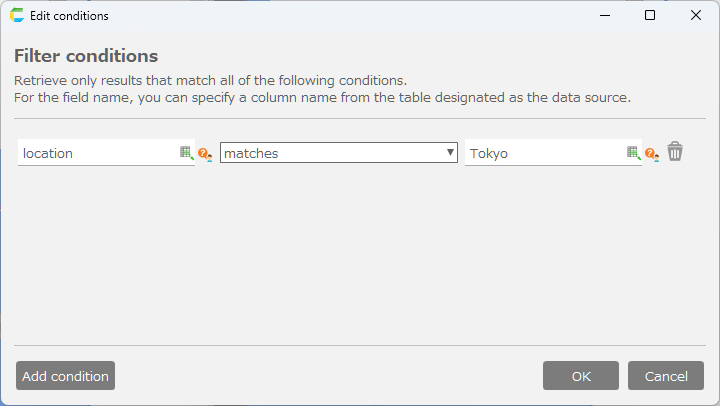
- Click the Edit button on the added line and specify a 'circulation route' and 'conditions'. If the specified conditions are met, the route will be used.
Deleting a circulation route
Click the X button on the route you wish to delete, delete the line, and then click the 'OK' button in the 'Circulation route asignment settings' dialog box.
Edit the circulation target.
- In the 'Register circulation target' dialog, click the Edit button for the row you wish to edit.
- Edit in the 'Specify circulation data information' dialog that opens.
Delete the circulation target
- In the 'Register circulation target' dialog, click the Delete button for the row you wish to delete.
- When the confirmation message appears, click "OK".