Register a circulation route
The route of the route is set in the 'Register circulation route" dialog box that opens when the 'Register circulation route' button is clicked.
Register a new circulation route
- Click the "Register" button in the 'Register circulation route' dialog box.
- In the 'Specify circulation route' dialog box, enter the route code.
- Register the step and person in charge of circulating data in each circulation status. Click the 'Register step' button of the status for which you want to register a step.
- In the 'Set circulation step' dialog box, specify the number of steps and click the 'OK' button. The method of rotation will change depending on the specified details.
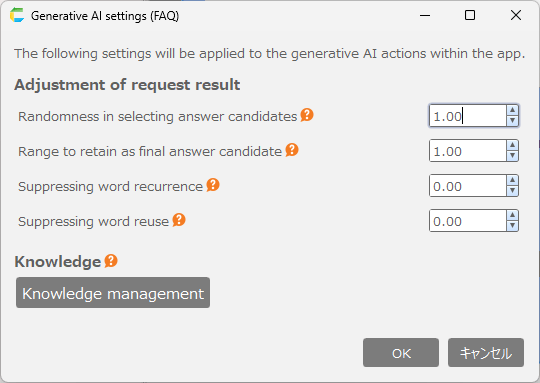
Serial circulation… The data is routed sequentially to multiple person in charges. In the following image, the data is routed to two person in charges in order (moving on to the next step after the first person in charge approves).
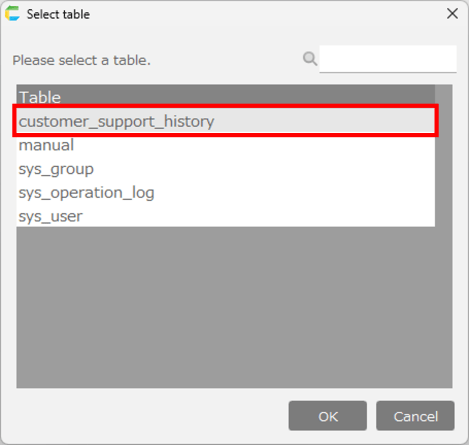
Parallel circulation… The data is routed in parallel to multiple person in charges. In the following image, the data is routed to two person in charges at the same time, and moves on to the next step after either one approves.
Tip
It is also possible to mix the above circulation types.
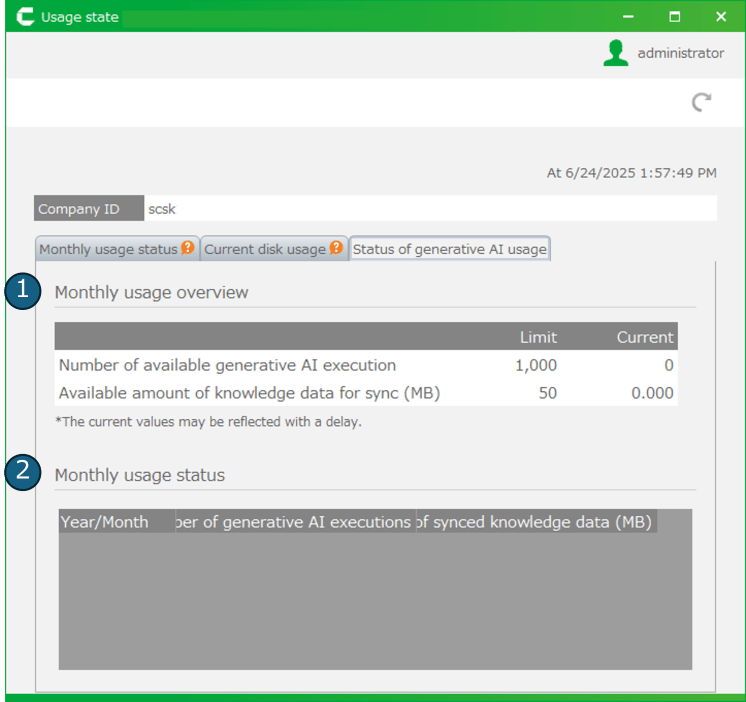
- Click on the 'Set PIC' button on the configured step and select the person in charge.
Hint
About 'special users'
Instead of specifying specific users (individuals), you can specify "drafter" or "drafter’s superior" as special users.At the time the data circulation starts, the special user is replaced with a specific user, as follows.
- drafter…The user who started the data circulation
- drafter’s immediate superior…A user who holds a position directly superior to drafter’s position within the same (or higher) organization as drafter.
- drafter’s superior ([position name])…A user whose position is [position name] within the same (or higher) organization as drafter.
- Click the 'OK' button in the 'Specify circulation route' dialog box.
Edit a registered circulation route
- In the 'Register circulation route' dialog, click the Edit button for the line you wish to edit.
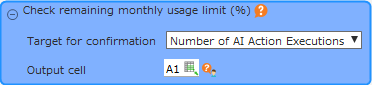
- In the 'Edit circulation route' dialog that opens, change the steps and the person in charge, then click the 'OK' button.
Delete a registered circulation route
- In the 'Register circulation route' dialog, click the Delete button for the line you wish to delete.
- Click the 'OK' button in the delete confirmation message.
Hint
Circulation routes that have already been associated with circulation data cannot be deleted.