3. Embedding Workflow Actions
- Specify the data to start circulation.
- Execute a circulation process (such as application, approval etc.)
- Check the status of circulation.
- Display the list of circulation data.
3.1. Specify the data and start circulation.
'Start circulation of the following data in the circulation data []' action is used to specify the data and start circulation.
Tip
When starting the circulation, a number (workflow number) is issued to identify the data in circulation.
Various workflow actions process the target data by searching for it using this number.
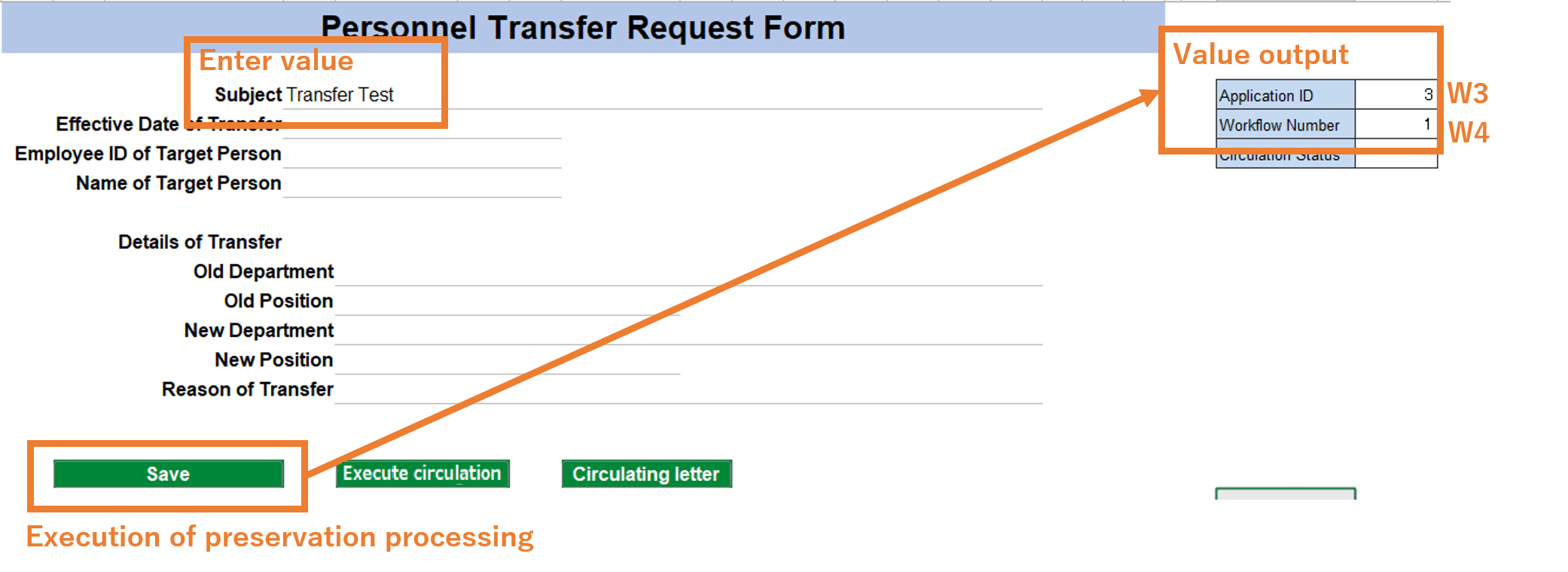
- Open sheet 'Personnel Transfer Request Form' of application 'Personnel Transfer Request Form'.
- Click the 'Save' button to open the 'Save' action set.
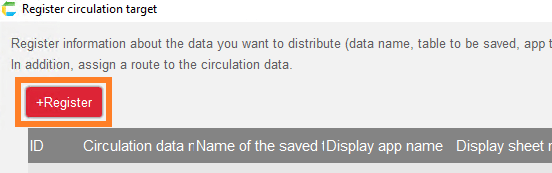
- Incorporate the 'Start circulation of the following data in the circulation data []' action into the 'Save' action set. Drop it after the 'Register data' action.
Note
This position is used because it uses the value of the ID (W3 cell) of the data registered in the 'Register Data' action.
- Click on the "Select Circulated Data" button and select "Personnel Transfer Request Form".
- Select '=W3' in the data selection cell.
- Check 'Set the published workflow number in the next cell' and select cell W4. This cell will be used for the 'workflow number' designation in subsequent workflow actions.
Hint
Cells W3 and W4 are in the following locations on the 'Personnel Transfer Request Form' sheet.
The above will start the circulation as soon as the new data is registered by clicking the 'Save' button.
Block updates to data being circulated
In addition, set actions in the 'Save' action set to prevent data tampering during and after circulation is complete.
Hint
If there are other update processes, such as deletion processing, similar measures are necessary.
- Prepare a cell in W5 to store the 'Circulation Status'.
- Drop the "Get the circulation status of the following circulation data" action before the 'Update data' action and enter the following
(Outputs the status of the circulation data corresponding to the workflow number in cell W4 to cell W5.)
- Next to action 2, drop and enter the following three actions from the 'Control' tab
If the circulation status is not 'New', the message will be displayed and the process will be terminated.
Hint
'New' is the default value. If you have changed the status setting in 'Set up the circulation process' , make proper changes accordingly.
3.2. Perform the circulation process.
- Create a 'Circulation Execute' button anywhere on the "Personnel Transfer Request Form" sheet.
Hint
If created with the copy of the button, the button ID (the second argument of the BUTTON function) should be a different value from the original button.
If it is left the same, the same set of actions as the original button will be executed when clicked.
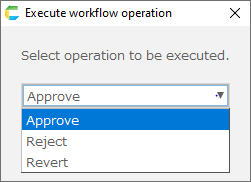
- Click on the 'Circulation Execution' button and create a 'Circulation Execution' action set by creating a new action set.
- Drop the 'Execute the circulation process for the following circulation data' action and enter the following Enter the following
Hint
W4 is the address of the cell where the workflow number is input.
Now, when you click on the 'Circulation Execution' button, the circulation process is ready to be executed.
3.3. Check the circulation status.
- Create a 'Circulation Status' button anywhere on the 'Personnel Transfer Request Form' sheet.
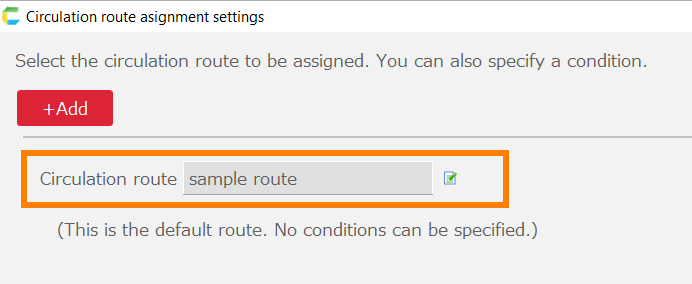
Hint
If created with the copy of the button, the button ID (the second argument of the BUTTON function) should be a different value from the original button.
If it is left the same, the same set of actions as the original button will be executed when clicked.
- Click on the 'Circulation Status' button and create a 'Circulation Status' action set by creating a new action set.
- Drop the "Display the circulation process for the following circulation data" action and enter the following
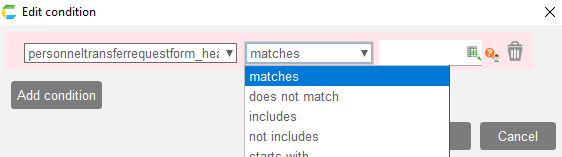
Hint
W4 is the address of the cell where the workflow number is input.
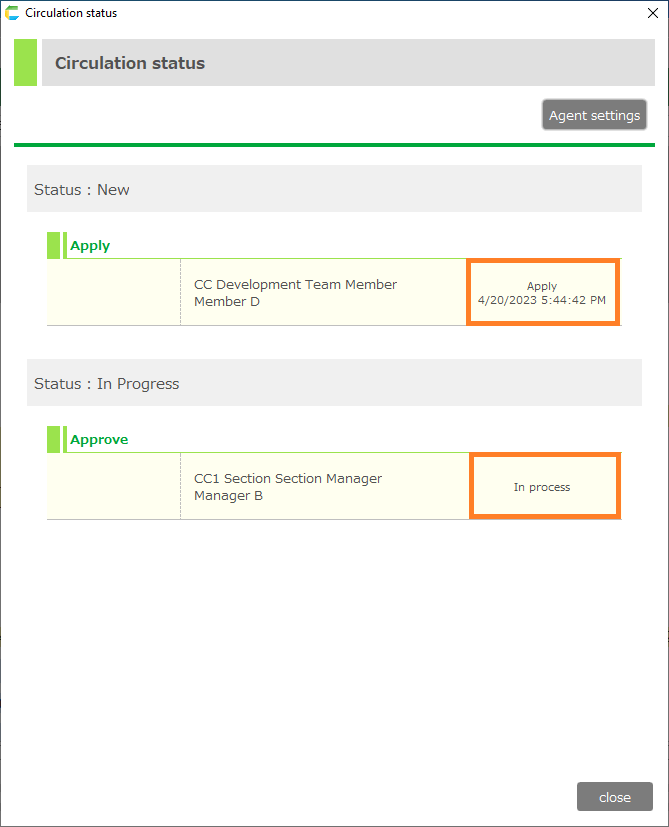
Now, when the 'Circulation Status' button is clicked, the circulation status dialog box will appear.
Tip
Other features such as circulation history and registration / reference of comments are also available.
For more details, please refer to Set up the circulation process.
3.4. 4.Display the list of circulation data.
- Open the 'List Of Application Form' sheet in the 'Personnel Transfer Request Form' application.
- Click on the 'Search' button and replace the 'Get multiple records from table []' action and the 'Acquire circulation data list' action in the 'Search' action set that opens.

Hint
The 'Acquire circulation data list' action can also be used to retrieve information about the workflow, such as the workflow number.
However, data that has not been circulated cannot be obtained.
- In the 'Specify circulation data' section of the placed action, select 'Personnel Transfer Request Form'.
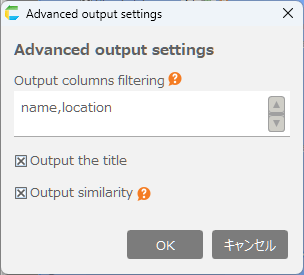
Hint
This will allow columns of personneltransferrequestform_header table to be specified in the next display columns settings.
- Specify the 'Set the columns to display and where to display them' for the placed action as follows
The workflow number column is added to the original data acquisition action specification.
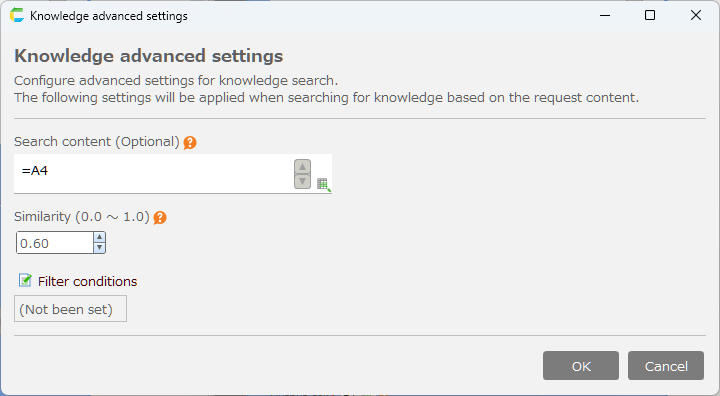
- Similarly, set the sorting conditions as follows.
With the above steps, application form information and workflow information can be retrieved as a list.
Modify the detailed display process.
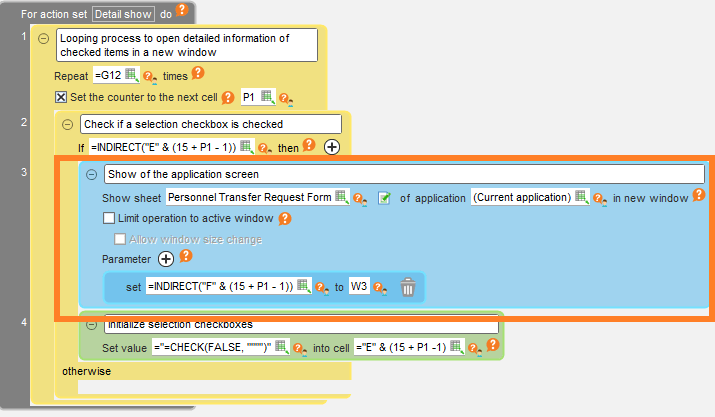
When opening the 'Personnel Transfer Request Form' sheet from the list of application forms, modify it so that the workflow number will be passed to it.
By doing so, the 'Personnel Transfer Request Form' sheet can perform various workflow operations using that number.
1. Click the 'Detail' button on the 'List of application forms' sheet to open the 'Detail' action set.
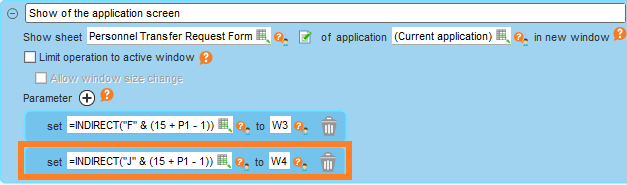
- Click the parameter + in the app screen display action.
- Enter '[W4] [=INDIRECT("J" & (15 + P1 - 1))]' to the newly added row.
3.5. Next step
This completes the configuration. Please refer to Basic usage (e.g., Personnel Transfer Request Form) for basic usage.