Copy Action
Copy one action
- Open the 'Action set settings' dialog.
- Click the action you want to copy and select it.
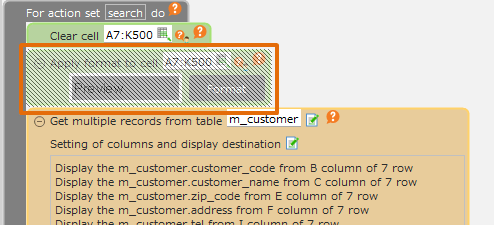
- While holding down the 'Ctrl' key, drag it and drop it on the copy destination.
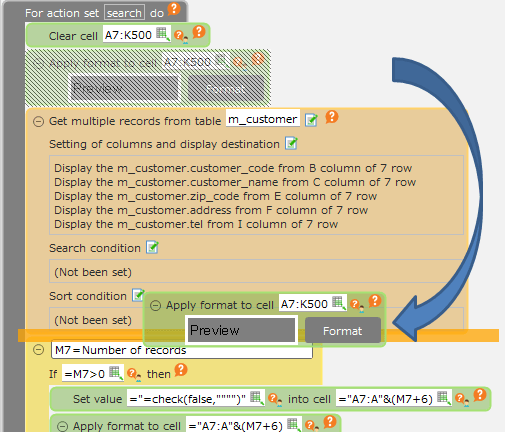
Hint
In the area where actions can be placed (dropped), the background color of the edit area will be orange.
Tip
If you drag and drop without pressing the 'Ctrl' key, the action moves from the originally placed location to the drop destination.
Copy multiple actions
- Open the 'Action set settings' dialog.
- Hold down the 'Ctrl' key and click and select all the actions to copy.
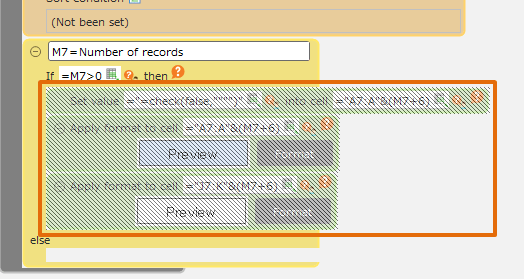
- Hold down the 'Ctrl' key and drag and drop it on the copy destination.
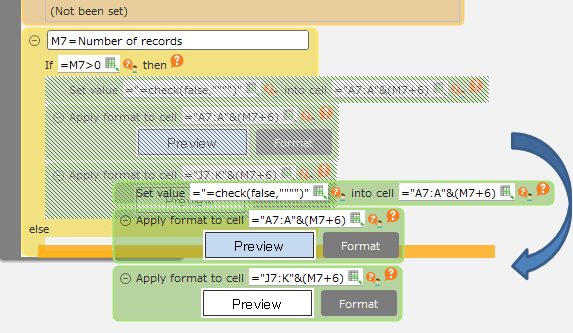
Hint
In the area where actions can be placed (dropped), the background color of the edit area will be orange.
Tip
If you drag and drop without pressing the 'Ctrl' key, the action moves from the originally placed location to the drop destination.
Copy action set
- Create a new action set to be copied and open the 'Action set settings' dialog.
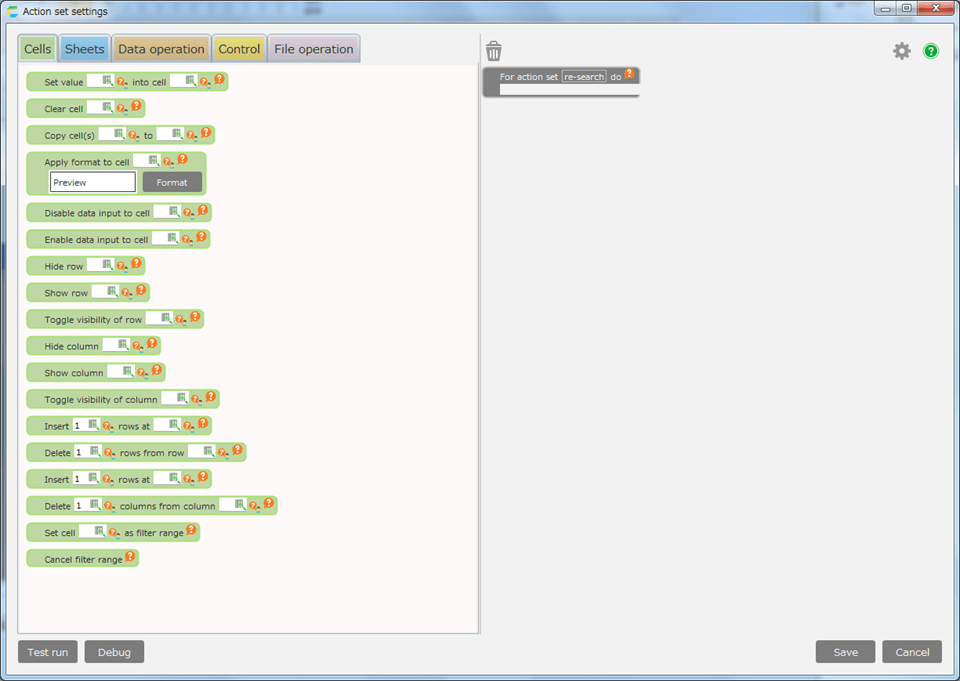
See also
Regarding creating the action set, check Assemble Action set
- Opens the 'Action set settings' dialog box of the action set to be the copy source.
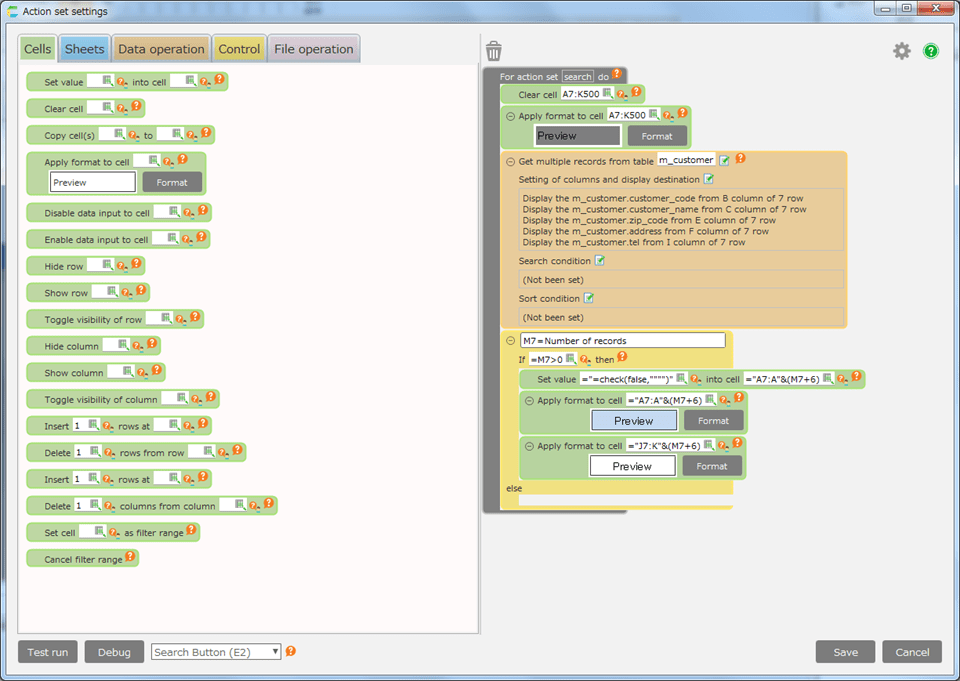
- In the action set that is the copy source, press 'Ctrl + A' to select all the actions in the action set.
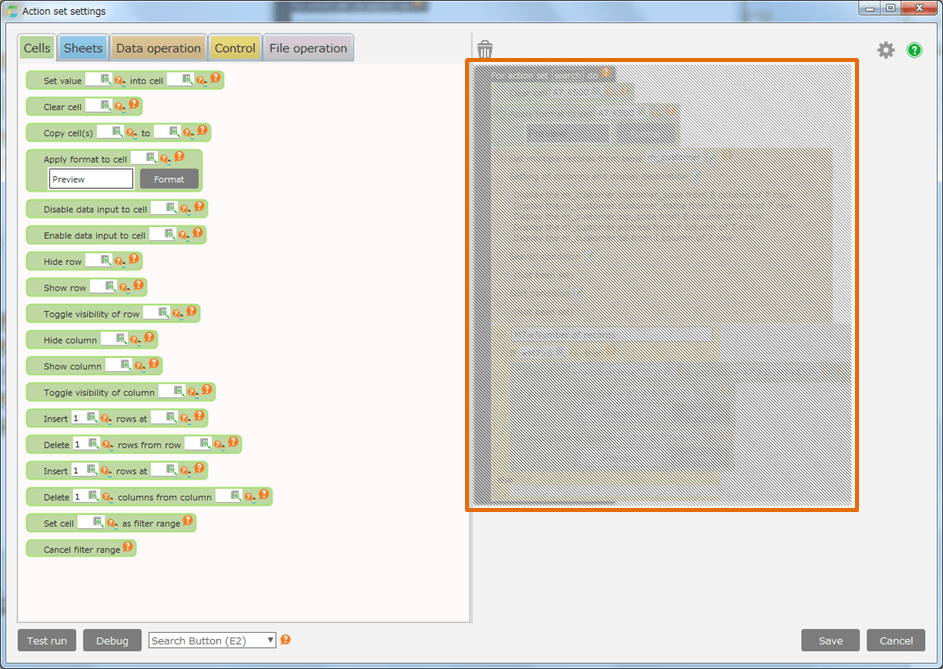
- Hold down the 'Ctrl' key and drag and drop it onto the destination action set.
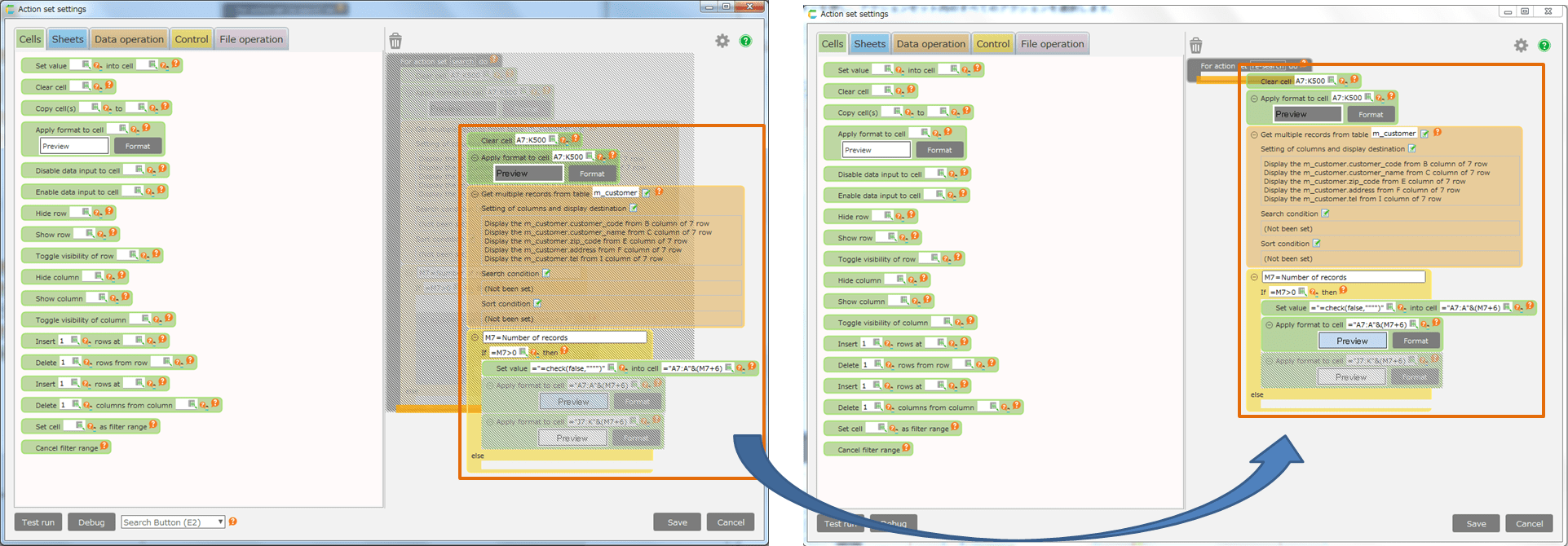
Hint
In the area where actions can be placed (dropped), the background color of the edit area will be orange.
Attention
If you drag and drop without pressing the 'Ctrl' key, the selected action will move and all actions in the source action set will be deleted.
Hint
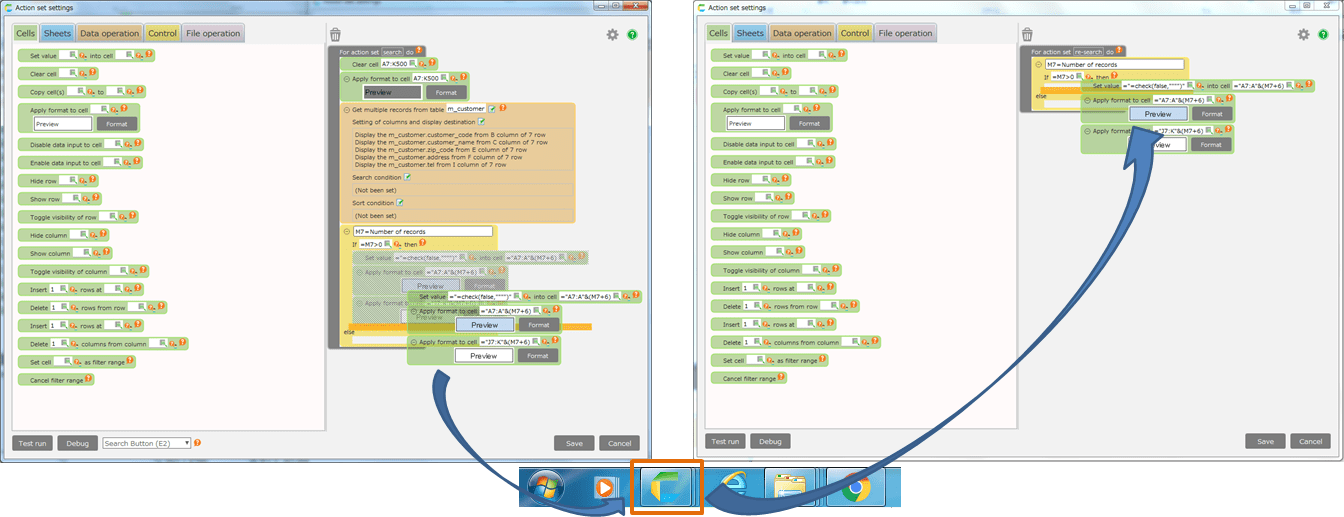
When copying to the action set of another application or another sheet, you can copy more easily by hitting the mouse on the copy destination sheet of the task bar while dragging and switching the screen and dropping it.