Register Circulation Routes
Register personnel who circulate data as 'Circulation Route'.
The registered circulation routes can be shared and specified for multiple data sets.
Circulation route settings are managed in the 'Circulation route management' tab of the workflow management screen.
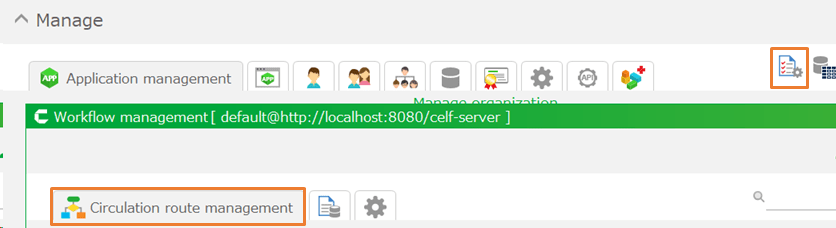
Register a New Circulation Route
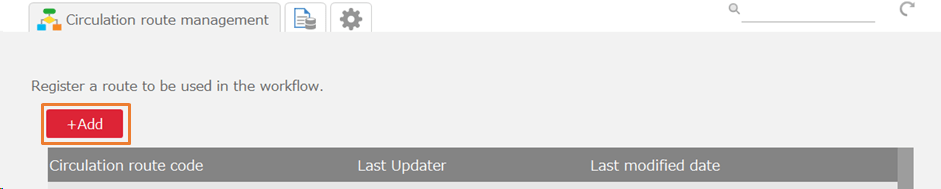
- Click the '+Add' button in the 'Circulation route management' tab.
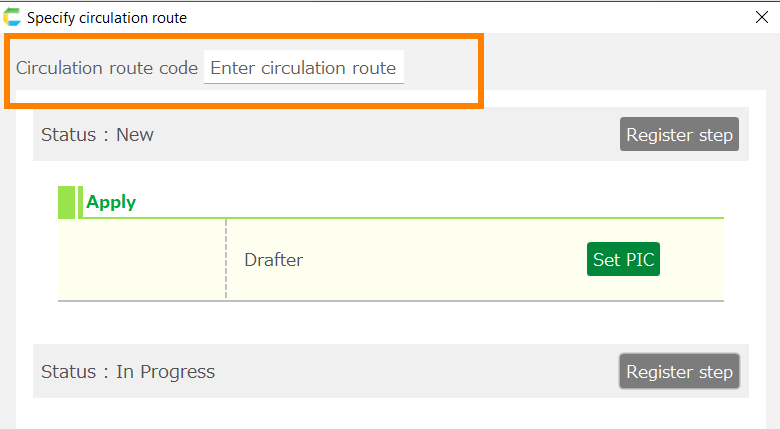
- In the 'Specify circulation route' dialog, enter the circulation route code.
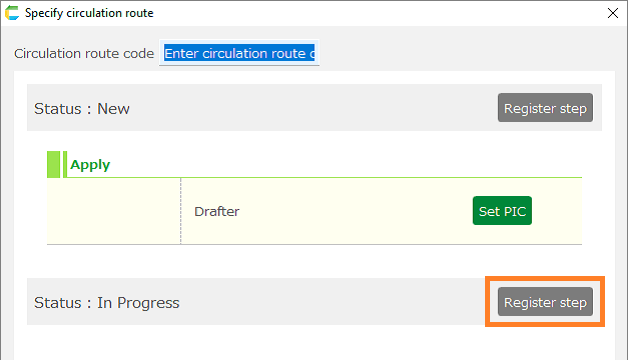
- Within each circulation status, register the steps and personnel for circulating data. Click the 'Register Step' button for the status where you want to register a step.
- In the 'Set circulation step' dialog, specify the number of steps and click the 'OK' button. The method of circulation changes depending on the specified content.
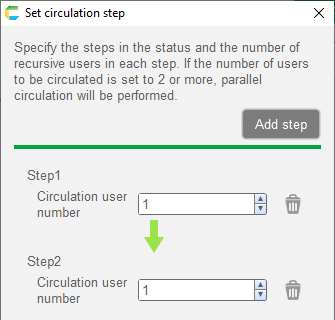
Serial Circulation … Circulate sequentially among multiple personnel. In the following image, it circulates sequentially to two personnel (after the first person approves, it moves to the next step).
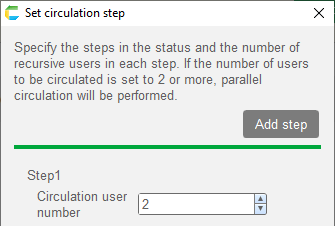
Parallel Circulation … Circulate concurrently to multiple personnel at once. In the next image, it circulates simultaneously to two personnel, and when either approves, it moves to the next step.
Tip
The above methods can be mixed.
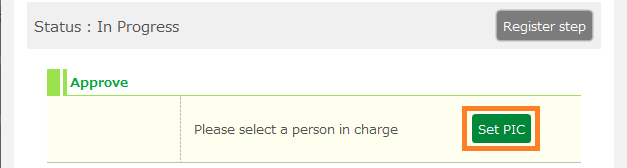
- Click the 'Set PIC' button on the specified step and select the person in charge.
Hint
About 'Special Users'
Instead of specifying a specific user (particular individual), you can specify special users such as 'Drafter' or 'Supervisor of the drafter'.Special users are replaced by specific users as described below at the time when data circulation is initiated.
- Drafter … The user who started the data circulation
- Drafter’s Direct Supervisor … A user in the same (or higher) organization as the drafter who holds the direct superior position to the drafter’s role.
- Supervisor of the drafter ([Position Name]) … A user in the same (or higher) organization as the drafter who holds the position of [Position Name]
- Click the 'OK' button in the 'Specify circulation route' dialog.
Edit a Registered Circulation Route
- In the 'Circulation route management' tab, click the edit button for the row you want to edit.
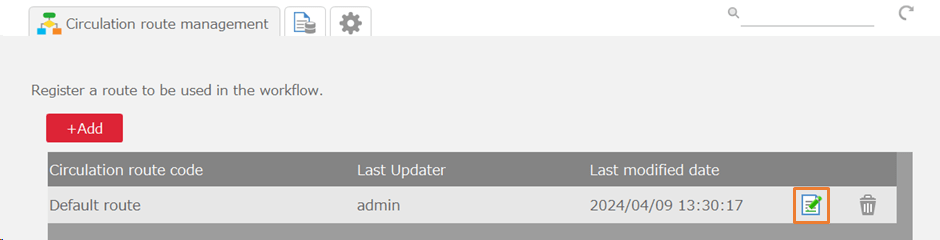
- In the opened 'Edit circulation route' dialog, change the steps or personnel and click the 'OK' button.
Delete a Registered Circulation Route
- In the 'Circulation route management' tab, click the delete button for the row you want to remove.
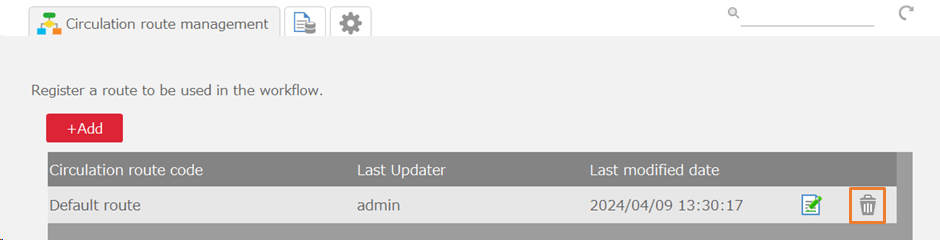
- Click the 'OK' button in the delete confirmation message.
Hint
Circulation routes that are already associated with circulation data cannot be deleted.