Set Up Circulation History
Circulation data is saved as history when circulation is executed, and can be referenced later.
Even without configuration, one row of the table designated as circulation data is automatically saved, but the target for saving can be changed.
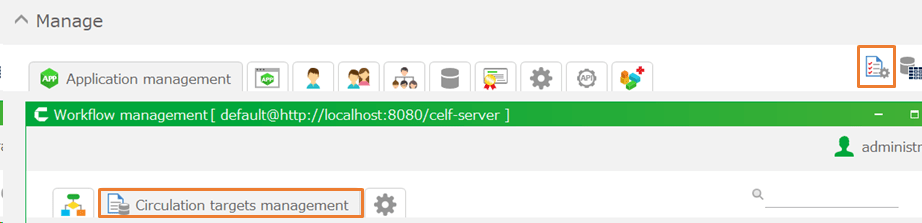
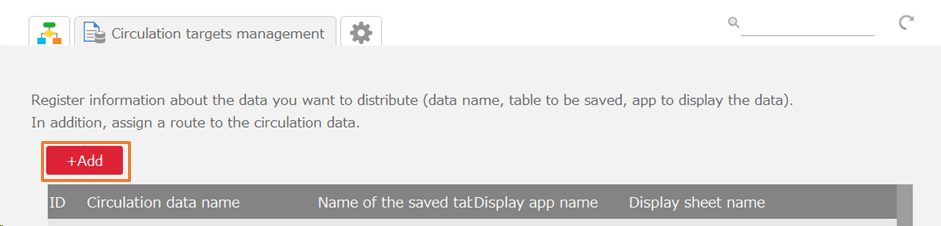
Circulation history settings are made from the 'Specify circulation data information' dialog, which opens when you click the edit button for circulation data in the 'Circulation targets management' tab of the workflow management screen, by further clicking the 'Detailed history settings' button.
Detailed Setting of Circulation History
- In the 'Detailed settings for the circulation data history' dialog, verify that the table specified as circulation data is set as the base table, and click the 'Select join table' link.
- In the 'Select join table' dialog, select the tables to be joined and click the 'OK' button. Multiple tables can be selected for joining.
- Click the 'Join condition between tables' link to display the 'Set join conditions for the circulation data history table' dialog, and then click the 'Add join condition' button. Multiple join conditions can be added.
- In the 'Edit join conditions for the circulation data history table' dialog, add the types and conditions of the join and click the 'OK' button. Multiple conditions can be added.
See also
For the types and conditions of the join, refer to Display Combined Multiple Tables Data.
- Click the 'Select columns for history retention' link to display the 'Select columns for history retention' dialog.
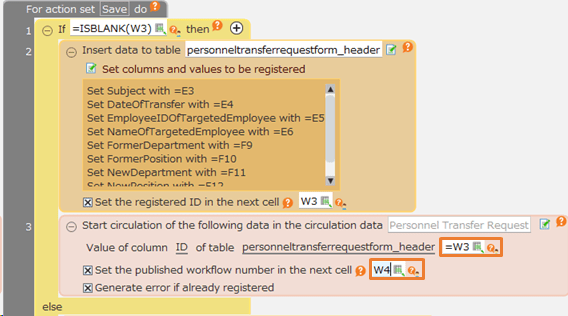
- Select the columns to keep in history and click the 'OK' button.

- Verify that the join tables, join conditions between tables, and columns to preserve in history are correctly set, and click the 'OK' button.
Display Circulation History
Attention
From here, log in again as the user who will execute the circulation to proceed.
- Click the 'Workflow' button on the published apps screen to open the Workflow user’s screen.
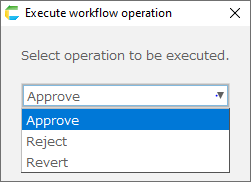
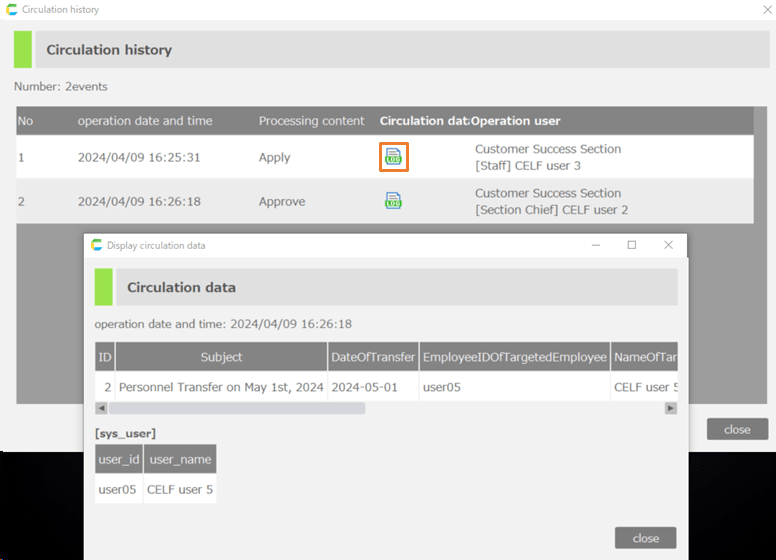
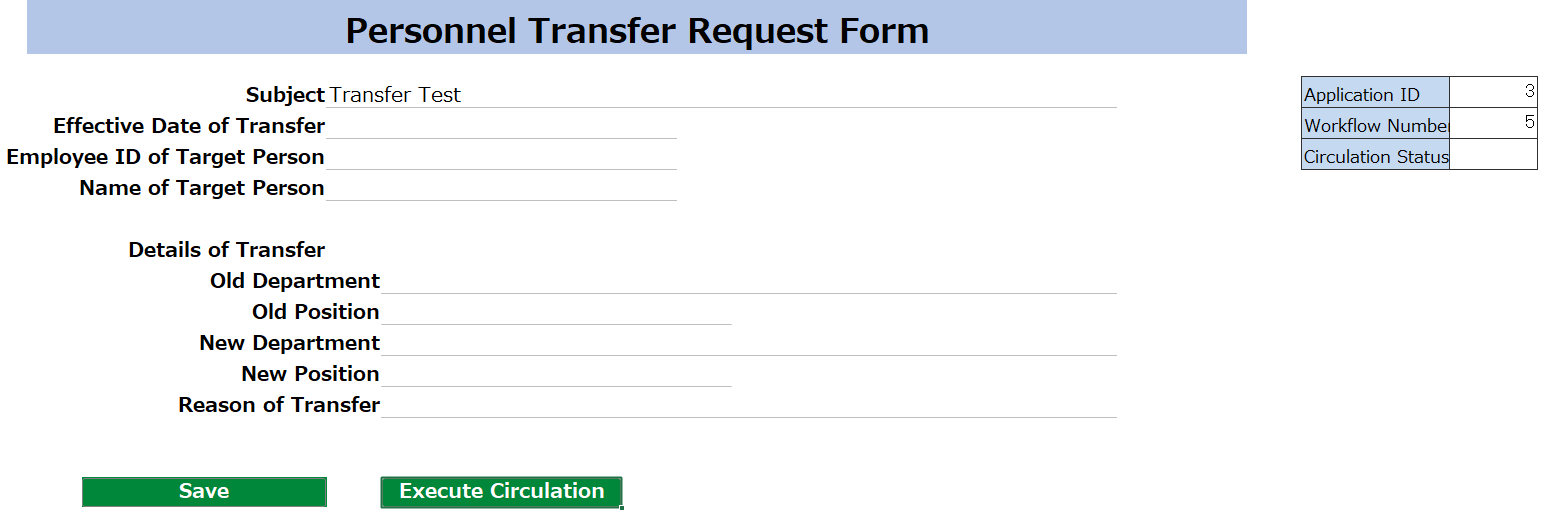
- Click the 'Confirm Circulation Documents' or 'Task' menu, list the circulated documents, and click the button for display circulation history for a circulated document.
- Clicking the 'Circulation data' button from the 'Circulation history' dialog will display the saved circulation data.