Launch Data Aggregation Agent
Attention
As of version 1.1.1, this feature is available only in the cloud version.
This is an action that allows you to query table data in the CELF database using natural language.
The AI interprets the user’s question, automatically performs the appropriate data aggregation, and displays the results.
Even without specialized knowledge, you can easily aggregate table data through a chat interface.
Improving query accuracy
In the Data Aggregation Agent, the columns and filter conditions specified in the action settings greatly affect the AI’s query accuracy.
By configuring them appropriately, you can obtain more accurate results.
[1] Role of search target columns
Columns are the items that the AI uses in queries. They are used for the following purposes.
- Used as the target for data retrieval.
- Used as items for sorting results, such as "display in order of XX".
- Used for establishing relationships when retrieving data by combining multiple tables.
Therefore, please select not only the columns for the data you want to retrieve, but also the columns needed for sorting and establishing relationships between tables.Selecting too many unnecessary columns may affect AI accuracy. Please select only the columns you need.
[2] Role of filter conditions
Filter conditions are conditions for narrowing down the target data for queries in advance.By setting conditions, the AI will only aggregate data within the narrowed range.
Important
To further improve query accuracy, registering table supplementary information is effective.
By registering descriptions and data examples for tables and columns, the AI can understand the table structure more accurately.
For details, please refer to Managing table supplementary information.
Action settings
First create the tables, then configure the target tables, columns, and filter conditions.
[1] Target tables (Required)
Select the target tables. Click to open the table selection dialog.Only tables for which you have read permission can be selected.You can select up to 10 tables.
[2] Search target column settings
Each selected table is displayed as a link in a list. Clicking a table link will open a dialog for configuring the columns and filter conditions for that table.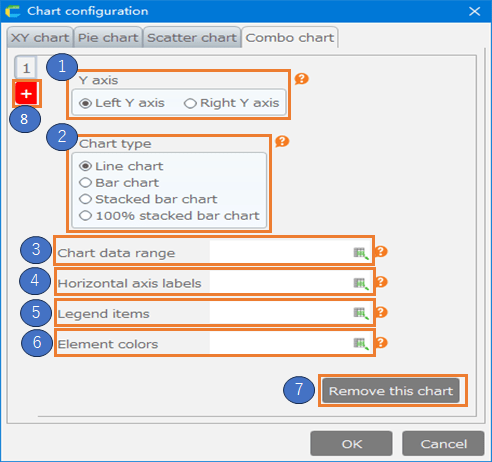
Search target columns (Required)
Specify the columns to use in queries.For details on the role of columns, please refer to Improving query accuracy.Clicking the column settings button opens a column settings dialog where you can select or deselect columns all at once.You can select all columns with the 'Select all' button and deselect all columns with the 'Deselect all' button.At least one column must be selected.Filter conditions
Specify conditions for narrowing down the target data.Each condition is specified as a combination of 'column name', 'operator', and 'value'.When multiple conditions are set, only data matching all conditions will be targeted.The columns used in filter conditions must be included in the column settings above.After configuring the required columns and filter conditions, click the 'Settings' button.
When you execute the action after completing the action settings, the AI chat dialog will be displayed.
See also
For instructions on using the chat dialog, please refer to How to Use the Data Aggregation Agent.