Make a request to the AI
This is an action that makes a request to the Generative AI and outputs the result.
You can include various data (Sheet data, File, Knowledge) in the request.
[1] Request content (Required)
Enter the request content(prompt) which describes what you want to request the Generative AI. For examples, refer to Creating Request Content (Prompts).
[2] Parameter settings
 If you click, a dialog will open. You can configure the parameters for adjusting the request results returned by the AI and the AI model to be used.By default, the values specified in Extension Option Settings are applied, but by selecting the 'Apply to this action only' checkbox, it is also possible to use values unique to this action.For details on each parameter, please refer to the table in Generative AI Action Parameters.
AI model
Select the generative AI model to use for processing the request.Next to the model name, an indicator shows the model’s capability (Light / Standard / Advanced) and the level of credit consumption (Consumption: Low to Very high). For how many times you can run it per month, please refer to Estimated Number of AI Runs.Tip
When "Auto" is selected, credits are calculated based on the model actually used.You can check the actual number of credits consumed with Output a Credit Usage Log.Processing level
Specify how much time the AI spends thinking when creating an answer.This is displayed only when an AI model that supports the processing level is selected.
Processing level Description Fast Minimizes the thinking time. Suitable for simple tasks such as summarizing, translating, or writing routine text. Standard Balances the processing time and the accuracy of the answer. Advanced Takes more time to think. Suitable when you want to prioritize the accuracy of the answer, such as for judgments based on multiple conditions or tasks with many steps. Note
The higher the processing level, the more credits are used.
[3] Sheet data
When selected, you can include the values of the cells in the specified area (at the time of action execution) in the request content.
[4] File
When selected, you can include files in the request content. The currently available files are as follows.
Type Extension Notes Document txt, pdf, docx, pptx, xlsx PDF files are handled by text extraction; if extraction is not possible, they are treated as images. When treated as an image, an error will occur if it exceeds 20 pages. Image jpg, jpeg, png, webp
Select file with pop-up dialog
Select a file from the file selection dialog when the action is executed.If 'Multiple files?' is checked, multiple files can be selected.If the 'Cancel' button is clicked without selecting a file, the process will continue without including the file in the request.Use the specified path
Specify the file path or an expression during action setup.If the specified value is empty when the action is executed, the process will continue without including the file in the request.Specify by cell
During action setup, specify the cell range where the file path is set.If the value of the specified cell is empty when the action is executed, it is not treated as an error, but as no file, and the process continues.Take a screenshot
When the action is executed, 'Snipping Tool' (the standard Windows screenshot tool) will be launched.The captured screenshot will be set as the specified image.If you 'Cancel' during the screenshot capture, the action will terminate without sending a request to the Generative AI. (The processing of the action set itself will continue.)Tip
With 'Snipping Tool', you can capture images in any of the following modes: 'Rectangle Mode', 'Freeform Mode', 'Window Mode', or 'Full screen Mode'.The image below is an example of a screenshot taken in 'Rectangle Mode'.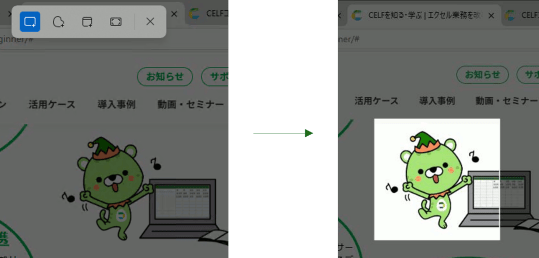 You can also configure request settings for each file.Currently, for Excel files, you can select the sheet to be read.
Select file with pop-up dialog
Select a sheet from the sheet selection dialog when the action is executed.If the 'Cancel' button is clicked without selecting a sheet, an error will occur and the process will be interrupted.Select sheet by cell value
Specify and select the sheet name by the cell value.Select first sheet
[5] Knowledge
When selected, you can make a work request using Knowledge (multiple selections possible).By using Knowledge, you can automatically select and include data within CELF that corresponds to the request content.For details, please refer to Knowledge.By clicking the 'Details' button, you can configure the settings for Knowledge retrieval.
Search Content (Optional)
You can explicitly specify the content to search for Knowledge.If not specified, the content from [1] above will be used to search Knowledge.Similarity
Specify the similarity of the data to retrieve from Knowledge.A higher value indicates more similar data, and specifying a higher value will limit references to only more similar data.Filter conditions
Specify the conditions to filter the data retrieved from Knowledge.Among the retrieved data, only data that matches all the specified conditions will be referenced.
[6] Output Cell (Required)
Specify the cell to output the request result. If the request result is text, the result will be set in the specified cell.If the request result is in tabular format, the result will be set starting from the specified cell.