Set up an agent
Specify any user as a 'agent'.
The agent can perform the circulation process on behalf of the original person in charge.
To set up an agent, use the 'Register agent' dialog, which can be opened by clicking the 'Register agent' button.
Register an agent
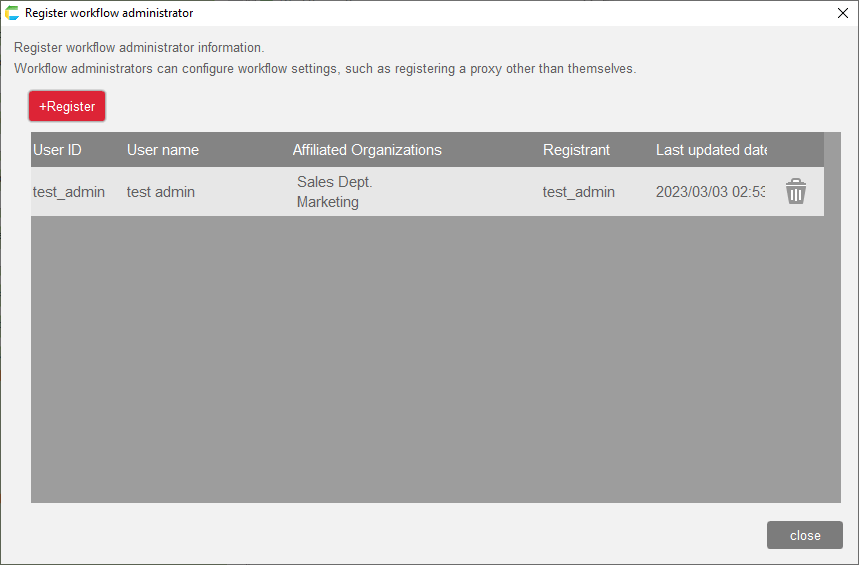
- Click the 'Register' button in the 'Register agent' dialog. Here, specify the user to be substituted.
- Select the user to be registered in the 'Select user' dialog.
- The selected user row will be added. Then, to designate an agent for this user, click the 'Register agent' button in the added row.
- In the 'Proxy operation settings' dialog that appears, click the 'Register' button.
- Click the Edit button to display the 'Select user' dialog. Select the user you wish to register as an agent.
If 'Enable proxy' is checked, the designated user can perform proxy operation.
- Click the 'OK' button.
Tip
If there is at least one valid agent for the principal, an icon will be displayed in the row.
Attention
You must have workflow administrator privileges to designate an principal. If you use the 'Display agent settings screen' action to set up an agent, users without workflow administrator privileges will only see the 'Proxy operation settings' dialog. (The principal is fixed to the user himself).
Delete agent
- In the 'Agent setting' dialog, click the 'Register agent' button for the user line you wish to edit.
- In the 'Proxy operation settings' dialog, click the trash can icon for the user row you wish to delete.
- Click 'OK' in the confirmation message.
・Delete the principal
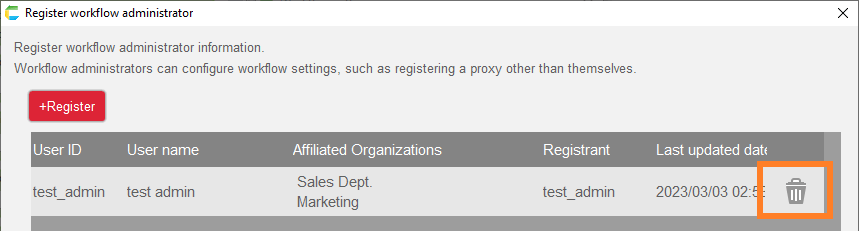
- In the 'Agent settings' dialog, click the Trash button for the user you wish to remove.
- Click 'OK' in the confirmation message.
Note
The registered agent associated with the principal will also be deleted together.