Branch action
Branch by condition
By using ‘Branch by condition’ action, the action is executed only when the specified conditional expression is satisfied.
- Open ‘Action set setting’ dialog.
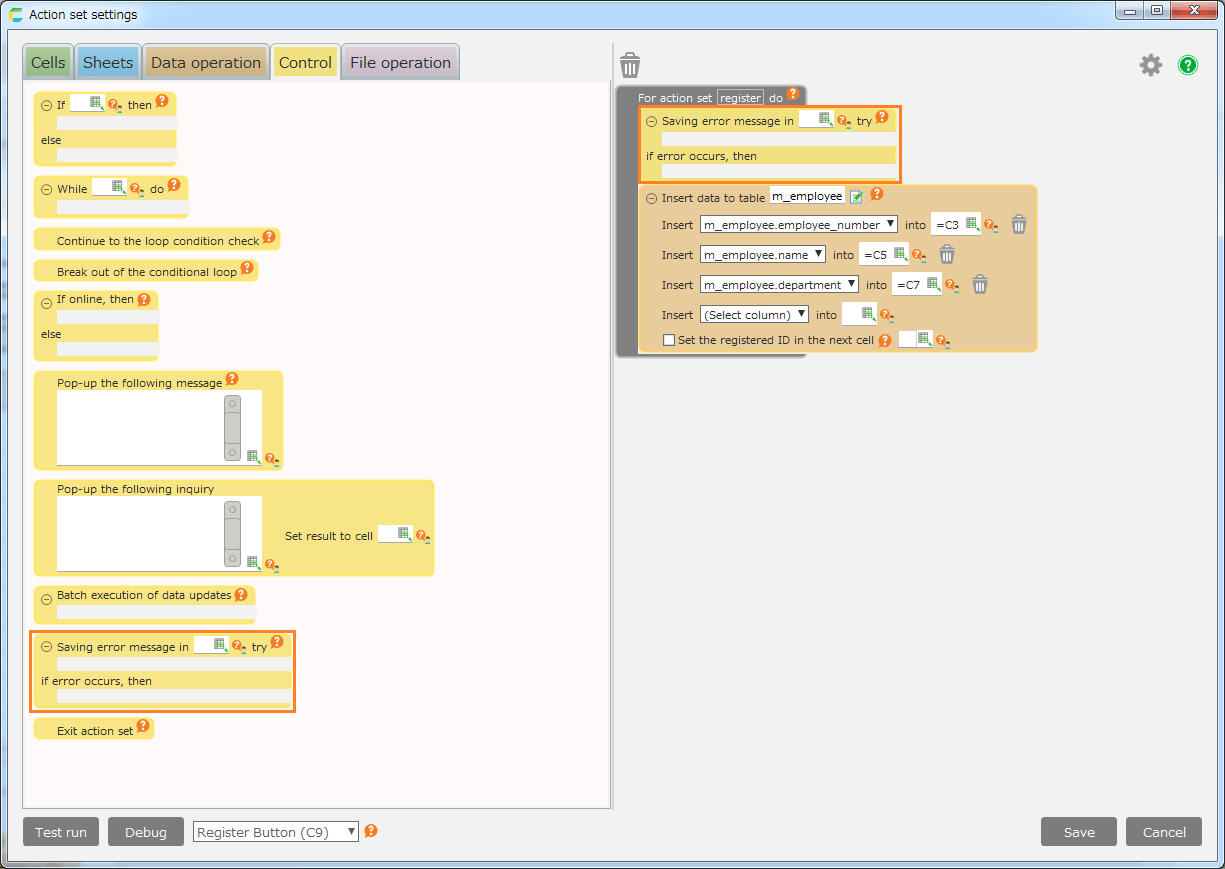
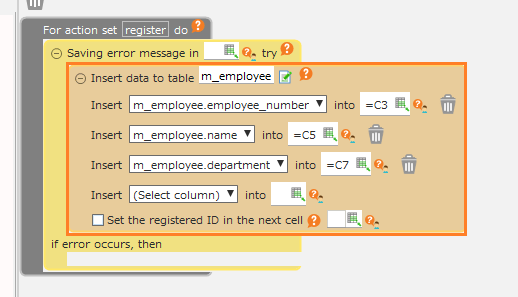
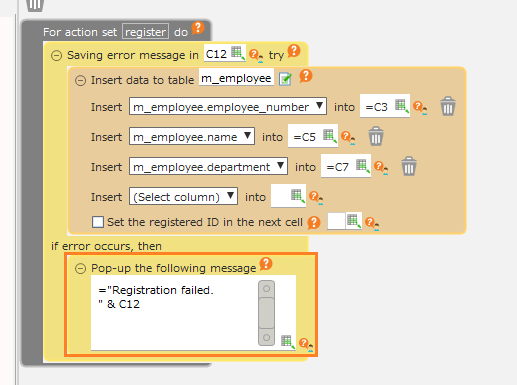
- Drag ‘Branch by condition’ action, then set into the edit area.
- Click the '+' button to add blocks as needed. (Multiple blocks can be added)
Tip
The added block can be deleted by clicking the '-' button.
- Input the conditional expression in each block and place the action.
When execute an action set, only the actions placed in the blocks that satisfy the conditional expression are executed.
In the above case, if the value of cell D3 is 'A', the actions placed in the first block, if it is 'B', the actions placed in the second block is executed.
If it is neither 'A' nor 'B', the actions placed in the bottom block is executed.
Tip
If the conditional expression is satisfied in multiple blocks, only the actions placed in the first block of them will be executed.
Branch by value
By using ’Branch by value' action, the action is executed only when it matches the specified value.
- Open ‘Action set setting’ dialog.
- Drag ‘Branch by value’ action, then set into the edit area.
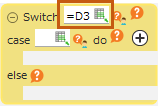
- Input switch value.
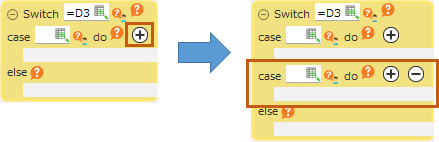
- Click the '+' button to add blocks as needed. (Multiple blocks can be added)
Tip
The added block can be deleted by clicking the '-' button.
- Input the case value in each block and place the action.
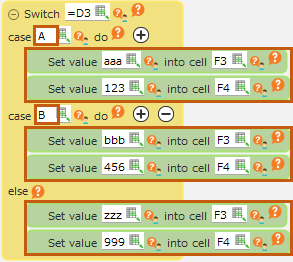
When the action set is executed, only the actions placed in the block whose case value matches the switch value are executed.
In the above case, if the value of cell D3 is 'A', the actions placed in the first block, if it is 'B', the actions placed in the second block is executed.
If it is neither 'A' nor 'B', the actions placed in the bottom block is executed.
Tip
If the case values match in multiple blocks, only the action placed in the top block will be executed.