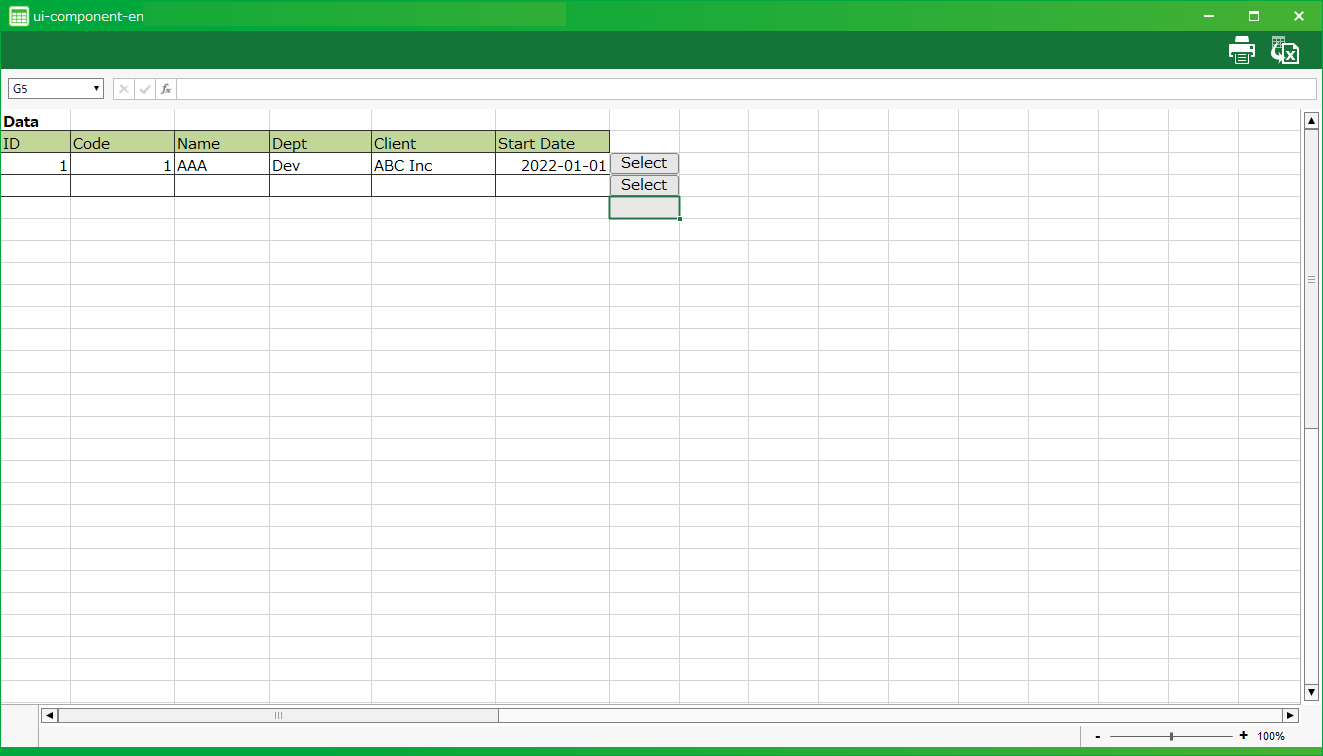
Select table data in a pop-up window
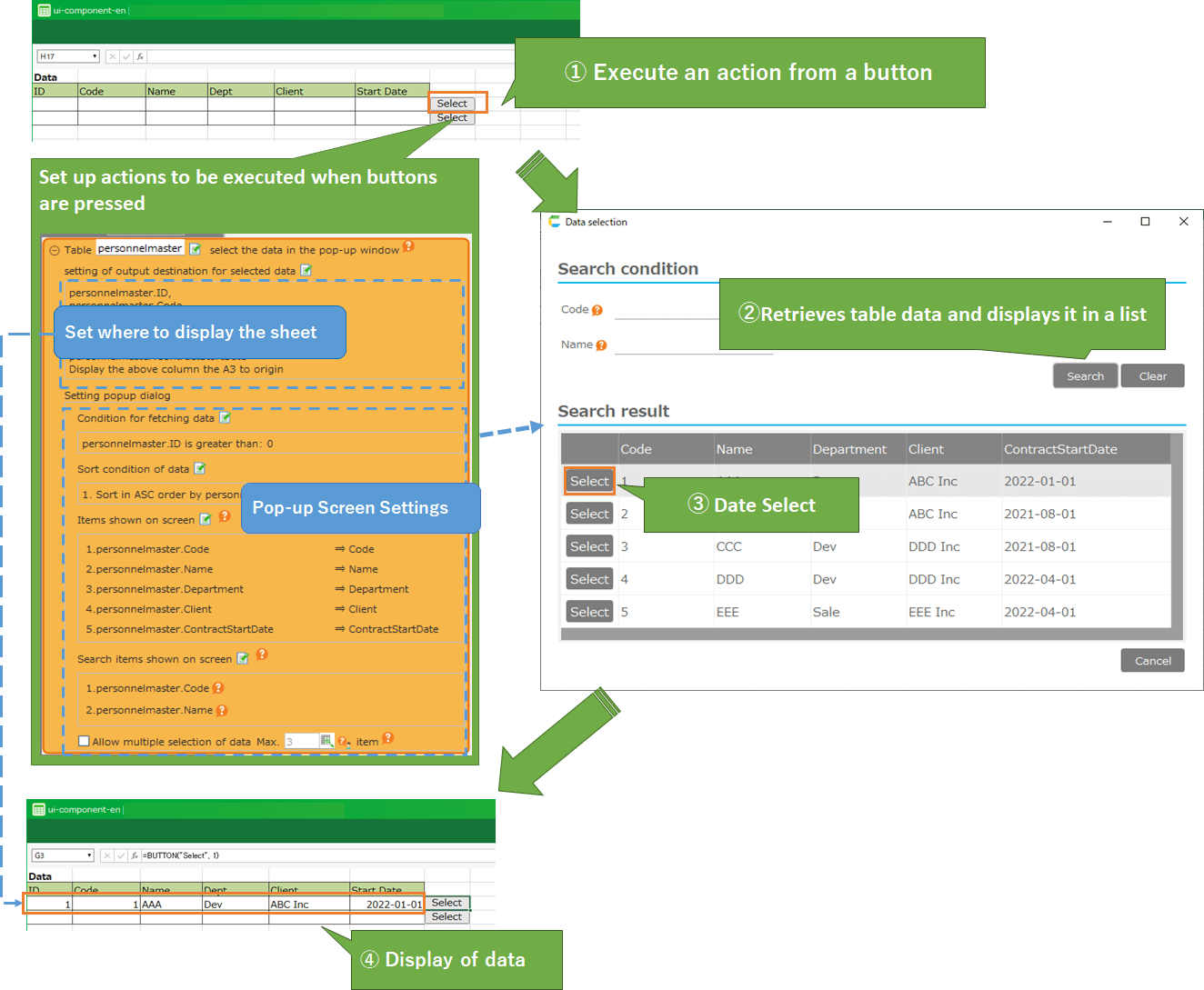
Setting
Select the table from which to obtain data
- Open the 'Action Set Settings' dialog.
- From the 'UI' tab, drag the 'Select table data in pop-up window' action and set it in the edit area.
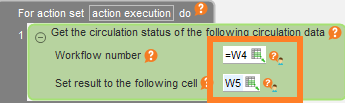
- Click the 'Select Table' button.
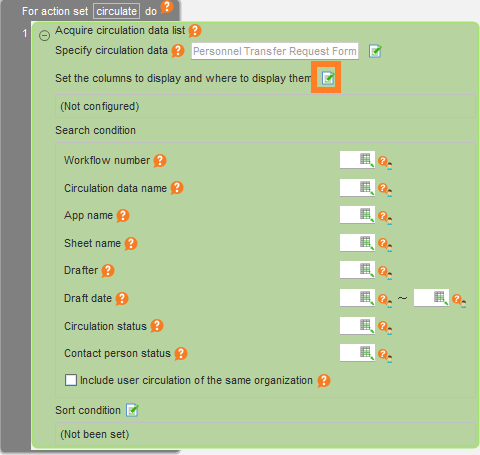
- Select the table from which to retrieve.
See also
For information on how to specify search criteria, see Getting a Single Data Item from a Table Choose source table
Specify the columns from which to retrieve data and where to display the sheet
- Click the 'Select Table' button.
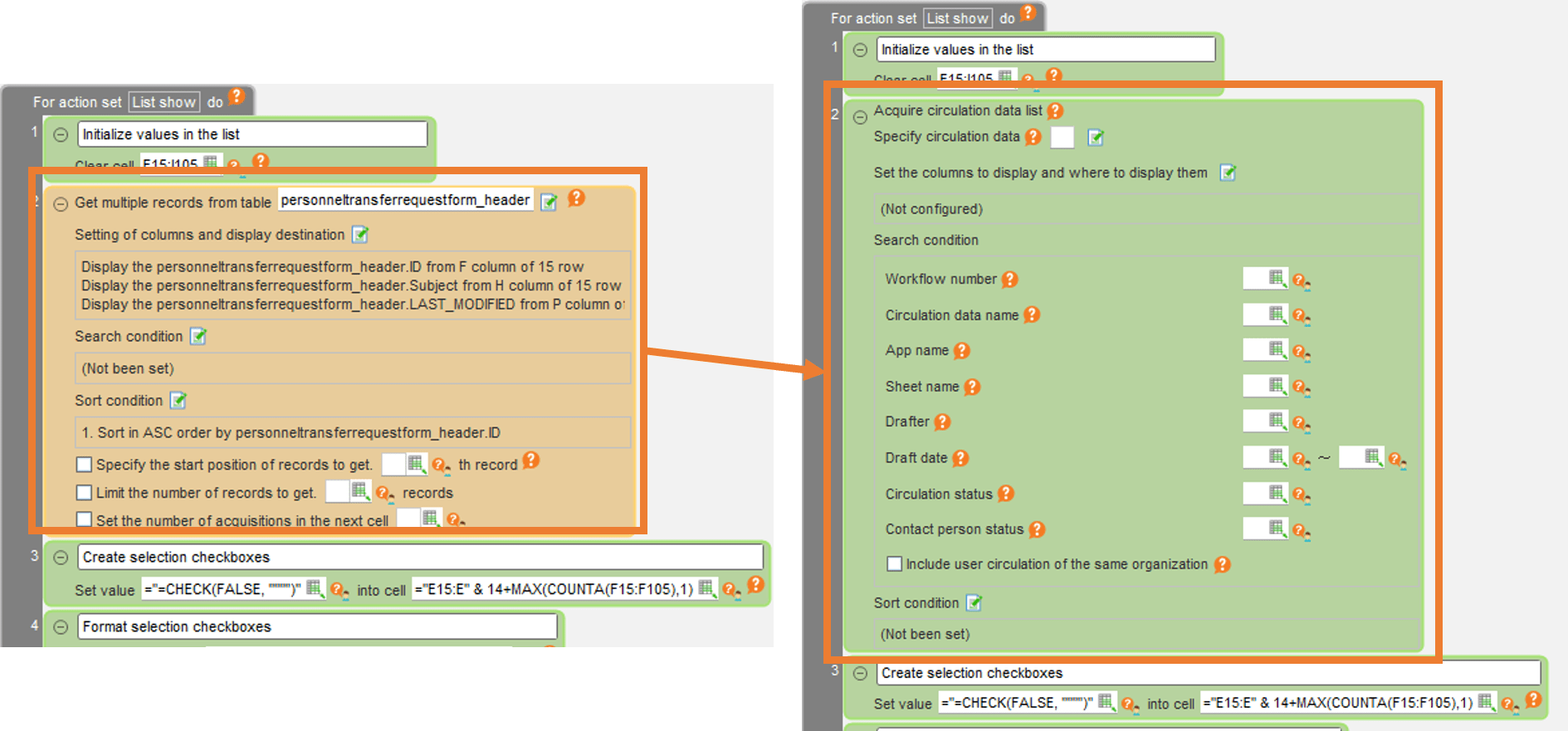
- Specify the cells to be displayed on the sheet and the columns of the table to be displayed.
See also
For information on how to set the columns to retrieve and the columns to display, see Retrieve multiple items of data from a table > Set source columns and display columns
Tip
The current row can be obtained by using the ROW function to specify the cells to be displayed on the sheet.For information on the behavior of the ROW or COLUMN functions in an action set, see the Get current row or column during processing
Pop-up Screen Settings
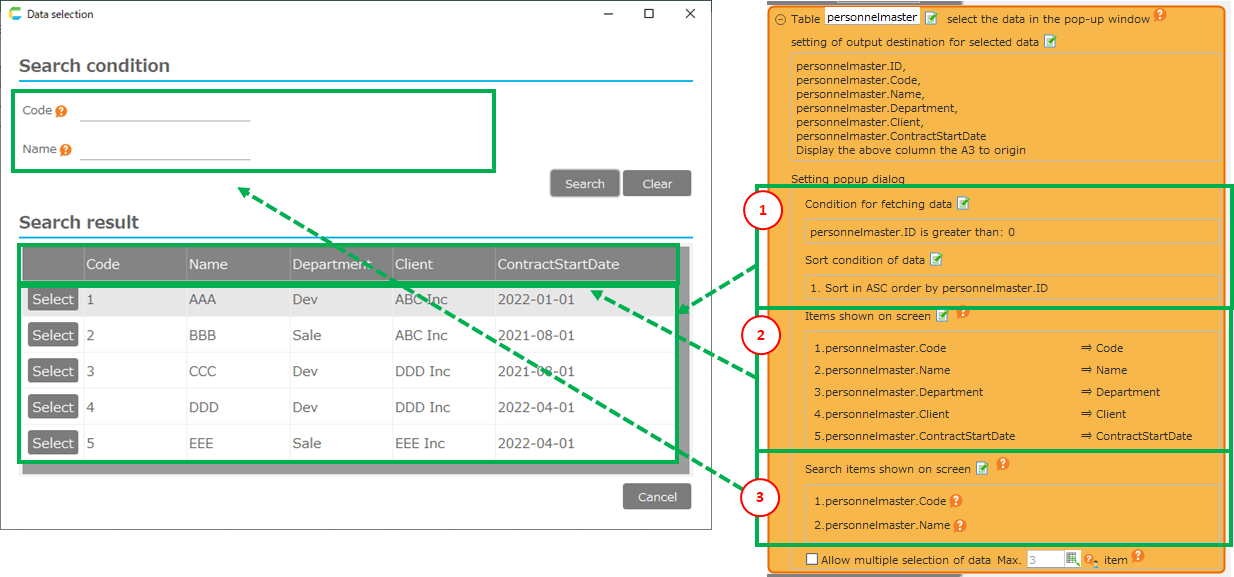
- [1] Search/sort criteria
- [2] Display items
- [3] Search Items
Specify conditions for data acquisition
- Click on the 'Edit Conditions' button.
- Specify acquisition conditions in the 'Edit Conditions' dialog box.
See also
For information on how to specify search criteria, see Getting a Single Data Item from a Table Set search condition
Specify data sorting conditions
- Click on the 'Edit Sort Criteria' button.

- In the 'Edit Sort Conditions' dialog, specify the table columns and order, then click the 'OK' button.
Tip
- In order, you can select "ascending order" or "descending order". The initial value is "ascending order.
- If multiple sort conditions are specified, their order of precedence is by sort number.
Specify items to be displayed on the pop-up screen
- Click on the 'Edit Screen Items' button.
- In the 'Set Items to Display on Screen' dialog, specify the table columns and names to display on the screen, then click the 'OK' button.
Tip
- The item specified here will appear on the pop-up screen.
- To adjust the column width of the list of data displayed in the pop-up screen, click on "Column width adjustment" and adjust each column in the grid.
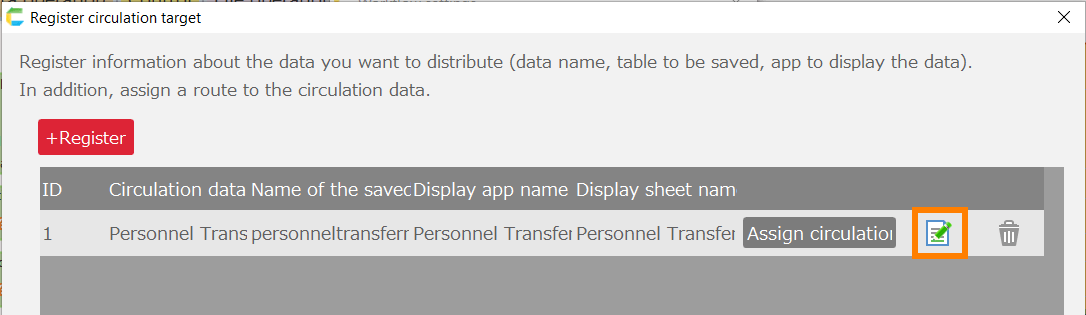
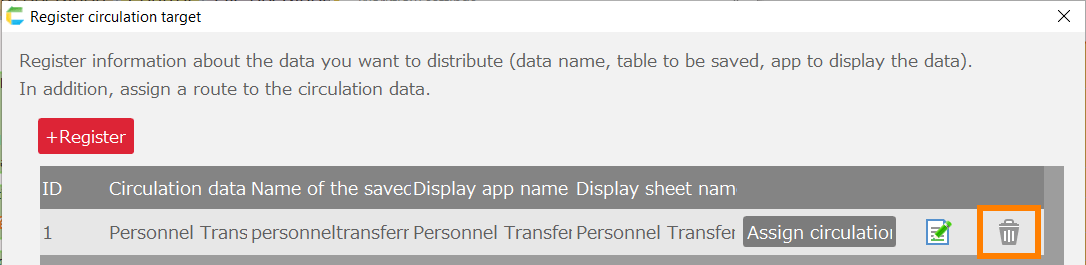
Specify search items to be displayed on the pop-up screen
- Click on the 'Edit Screen Items' button.

- Set search items in the 'Set search items to be displayed on screen' dialog.
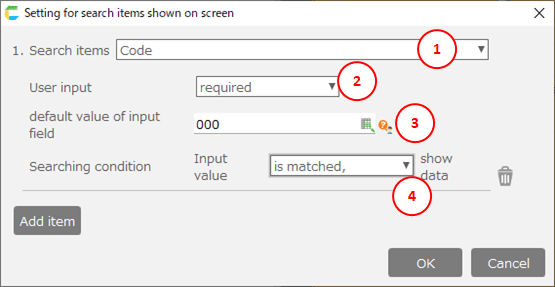
- [1] Search Items
- Select items to be displayed as search items on the pop-up screen.
- [2] User input
- Select whether to make the entry of search criteria mandatory or optional when searching.
- [3] Initial values for input fields
- Specify the initial values for the search item entry fields.
- [4] Search Conditions
When searching, select the match criteria with the input field. Possible selections are as follows
Condition Search target is matched, then Data that exactly matches the input value (A = B) . *B is input value is included, then Data partially matching the input value (A like '%B%'). *B is input value is the starting characters, then Data forward matching the input value (A like 'B%'). *B is input value is the ending characters, then Data backward matching the input value (A like '%B'). *B is input value is equal or smaller than data in table, then Data that input value is equal or smaller than (A >= B). *B is input value is smaller than data in table, then Data that input value is smaller than (A > B). *B is input value is equal to or larger than data in table, then Data that input value is equal to or larger than (A <= B). *B is input value is larger than data in table, then Data that input value is larger than (A < B). *B is input value
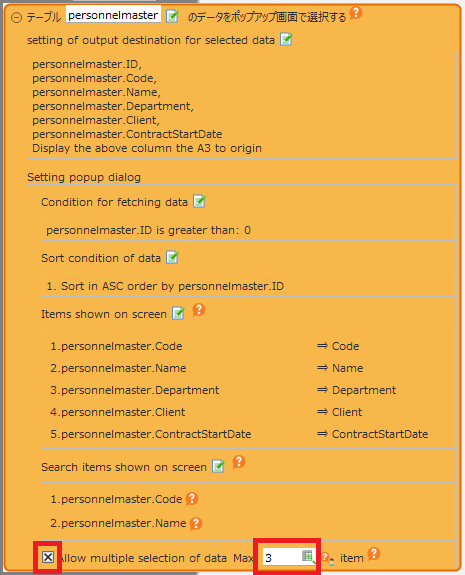
Specify multiple selections of data
- Specify the maximum number of data that can be selected in the pop-up window after the check box is turned on and the data is editable.
Tip
If the maximum number of rows to be retrieved is not specified, the maximum number of rows to be retrieved is the number of rows in the sheet.
Movement at Execution
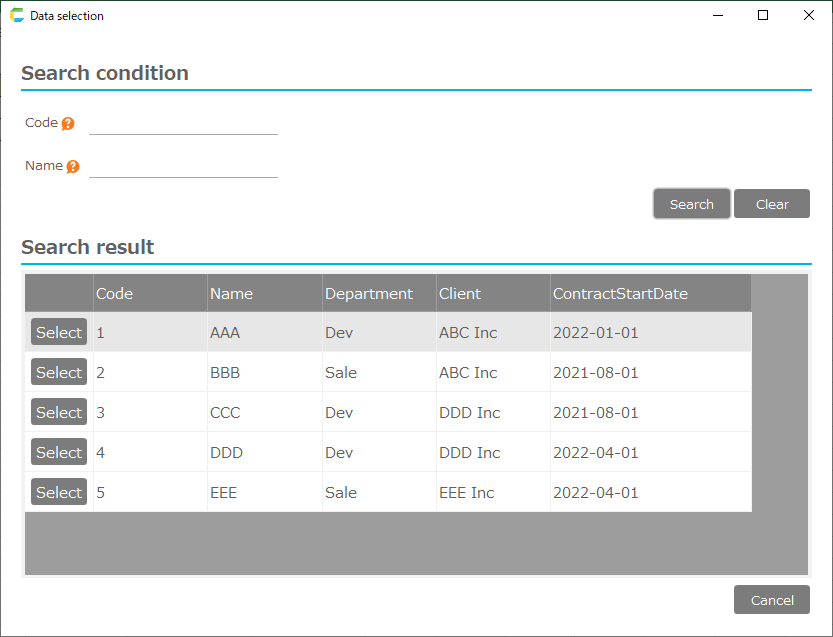
- When executed, the following dialog box appears
Tip
If multiple selection of data is allowed in the action settings, the selection button becomes a check box.
- When data is selected, the selected data is output to a cell.