Pasting in Actions
When using the following actions to paste cells or values, pasting will be applied to all cells, regardless of whether they are visible or hidden.
- Copy and paste cell value(s)
- Copy cell value(s) and paste to cell(s) on sheet
- Set data in Excel file to cell
Tip
In sheets created with versions earlier than 4.9.1 or earlier, copied data may not be pasted to hidden cells.
The following are the cases where pasting does not occur in hidden cells:
- When a sheet is filtered and copying and pasting are performed within the following ranges:
- The source is a single cell, and the destination is a range spanning multiple rows and one column.
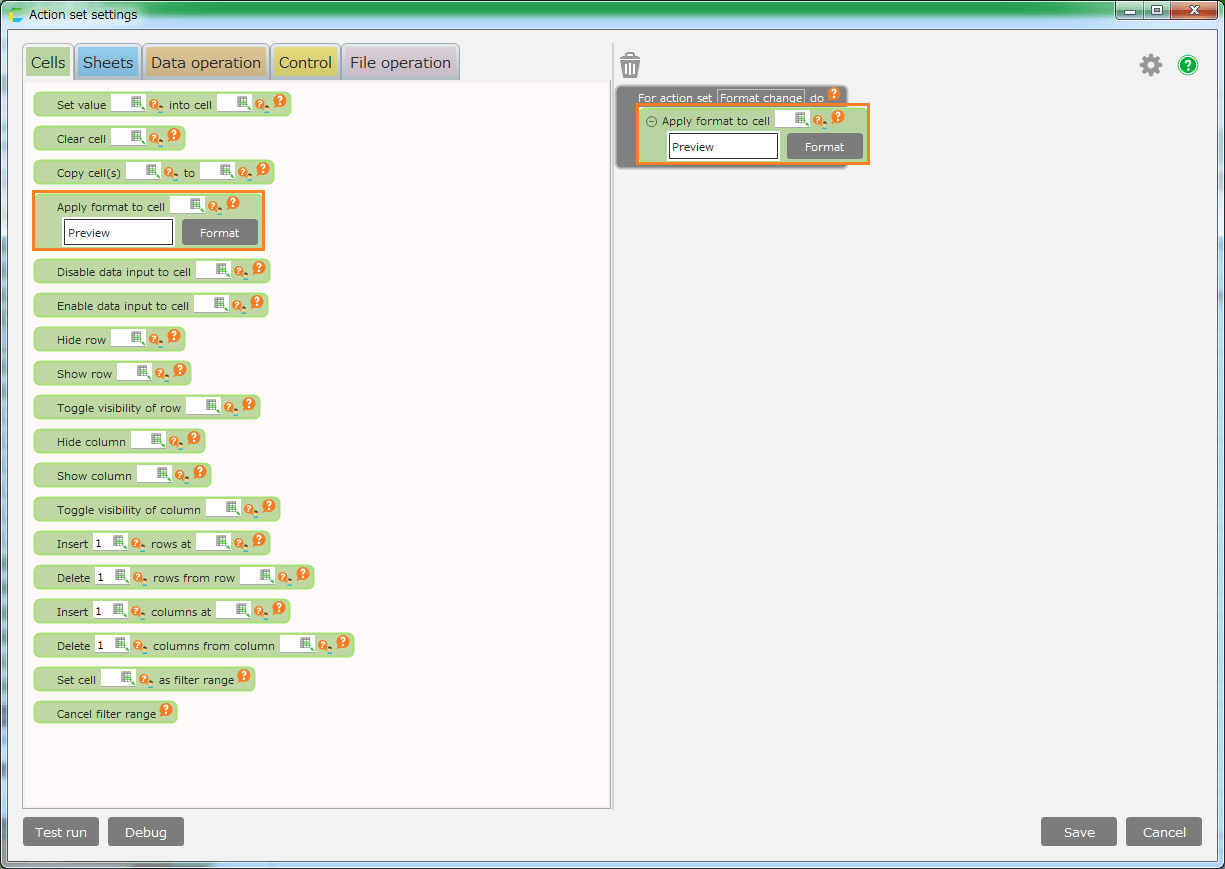
Example: If the following copy and paste actions are performed, they will not be pasted into the 12th row.
- The source is a range of one row by multiple columns, and the destination is a range spanning multiple rows and one column.
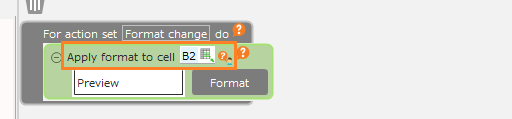
Example: If the following copy and paste actions are performed, they will not be pasted into the 12th row.
- The source is a single cell, and the destination is a range of one row by multiple columns.
Example: When performing the following copy and paste action, data will not be pasted into column H.

The source is a range of multiple rows by one column, and the destination is a range of one row by multiple columns.
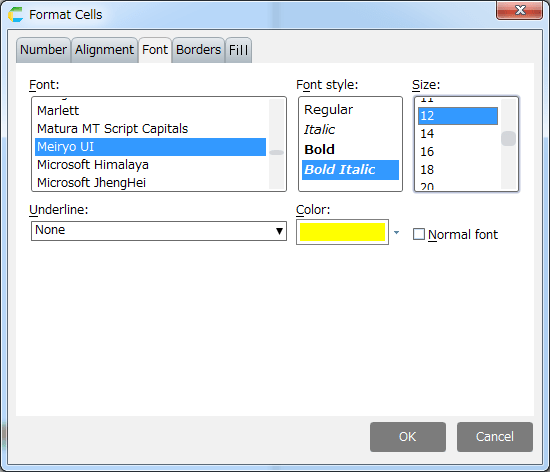
Example: When performing the following copy and paste action, data will not be pasted into column H.
If you want to paste into hidden cells as well, go to the Sheet Settings dialog > 'General' tab and uncheck the compatibility option 'Do not paste into hidden cells in specific cases during action-based cell pasting.'